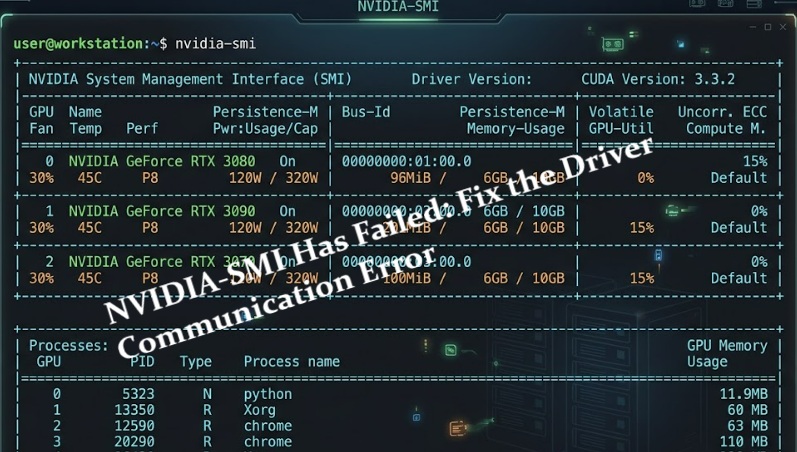
I ran nvidia-smi expecting to check my GPU stats, and instead got hit with “NVIDIA-SMI has failed because it couldn’t communicate with the NVIDIA driver” — one of the most frustrating NVIDIA errors you can encounter. It means your system can see the NVIDIA tools but can’t talk to the driver underneath. This guide walks you through every real fix, from basic to advanced.
Why This Error Actually Happens
This isn’t just a “driver is broken” situation. There are several distinct technical reasons this error fires, and diagnosing the right one saves you hours.
1. Kernel Module Mismatch
The most common cause on Linux. After a kernel update, the nvidia.ko kernel module no longer matches the running kernel version. The driver files exist on disk, but they aren’t loaded into the current kernel — so nvidia-smi can’t find anything to talk to.
2. Secure Boot Blocking Unsigned Modules
If Secure Boot is enabled in UEFI, unsigned or third-party kernel modules (including NVIDIA’s) get blocked at load time. The module silently fails to load, and nothing in the desktop environment warns you. This trips up a lot of users after a fresh install.
3. Driver Version / CUDA Toolkit Conflict
Installing a CUDA toolkit version that doesn’t match the installed driver creates a broken runtime environment. The nvidia-smi binary exists but references libraries tied to a different driver version. This is especially common in machine learning and deep learning setups.
4. Conflicting Nouveau Driver
The open-source nouveau driver and NVIDIA’s proprietary driver cannot coexist. If nouveau wasn’t properly blacklisted before NVIDIA was installed, both modules attempt to claim the GPU — and NVIDIA loses.
5. Docker / Container Context Without GPU Passthrough
Running nvidia-smi inside a Docker container without --gpus all or without nvidia-container-toolkit installed will always produce this error, even if the host system is perfectly fine.
Common Scenarios Where This Appears
- Right after a
sudo apt upgradeor kernel update on Ubuntu/Debian - After switching between NVIDIA driver versions using
ubuntu-drivers - On fresh installs where CUDA was installed before the display driver
- Inside WSL2 on Windows without proper NVIDIA WSL2 driver setup
- After enabling Secure Boot in BIOS on a dual-boot Linux system
- On cloud instances (AWS, GCP) after stopping and restarting a GPU VM
Error Behavior Comparison Table
| Scenario | nvidia-smi Output | Root Cause | Fix Path |
|---|---|---|---|
| Kernel updated, driver not rebuilt | “couldn’t communicate with NVIDIA driver” | Module mismatch | Rebuild DKMS or reinstall driver |
| Secure Boot enabled | Same error, module missing from lsmod | Unsigned module blocked | Enroll MOK key or disable Secure Boot |
| Nouveau not blacklisted | Same error + display issues | Driver conflict | Blacklist nouveau, reinstall NVIDIA |
| CUDA/driver version mismatch | Error + libcuda.so warnings | Library conflict | Match CUDA to driver version |
| Docker without GPU passthrough | Error only inside container | No GPU context | Add --gpus all flag |
| WSL2 without WSL driver | Error only in WSL | Wrong driver package | Install NVIDIA WSL2 driver on Windows |
Step-by-Step Fixes
Step 1: Check If the NVIDIA Kernel Module Is Loaded
Open a terminal and run:
bash
lsmod | grep nvidiaIf this returns nothing, the kernel module isn’t loaded. That’s your root problem.
Try loading it manually:
bash
sudo modprobe nvidiaIf you get an error like modprobe: ERROR: could not insert 'nvidia': No such device, the module can’t find matching hardware or the kernel headers are missing.
[Image: Terminal output showing lsmod grep nvidia returning empty, then modprobe nvidia error message]
Step 2: Rebuild the Driver with DKMS (After Kernel Update)
This is the fix for the most common cause — a kernel update that broke the module.
bash
sudo apt install --reinstall linux-headers-$(uname -r)
sudo dkms autoinstall
Then reboot:
bash
sudo rebootAfter reboot, run nvidia-smi again. If DKMS rebuilt the module successfully, it should work.
If DKMS isn’t installed or the driver wasn’t set up with DKMS, reinstall the driver directly:
bash
sudo apt purge nvidia-*
sudo ubuntu-drivers autoinstall
sudo reboot
Step 3: Check and Disable Secure Boot (If Module Is Blocked)
Run this to check if Secure Boot is active:
bash
mokutil --sb-stateIf it returns SecureBoot enabled, this is likely blocking your NVIDIA module.
Option A — Disable Secure Boot: Reboot into UEFI/BIOS settings and turn off Secure Boot. This is the fastest fix but not always ideal on managed systems.
Option B — Enroll a MOK Key (Keep Secure Boot ON):
bash
sudo apt install sbsigntool mokutilAfter reinstalling the NVIDIA driver with DKMS, enroll the key that DKMS auto-generates:
bash
sudo mokutil --import /var/lib/shim-signed/mok/MOK.derReboot and follow the blue MOK enrollment screen that appears before the OS loads. This signs the module so Secure Boot allows it.
[Image: MOK enrollment screen during reboot — blue screen asking to Enroll MOK or Continue Boot]
Step 4: Blacklist the Nouveau Driver
Check if nouveau is running:
bash
lsmod | grep nouveauIf it shows up, blacklist it:
bash
echo -e "blacklist nouveau\noptions nouveau modeset=0" | sudo tee /etc/modprobe.d/blacklist-nouveau.conf
sudo update-initramfs -u
sudo reboot
After reboot, reinstall NVIDIA drivers. Nouveau and NVIDIA cannot share the GPU.
Step 5: Docker and Container Fix
If you’re inside a Docker container:
bash
docker run --gpus all nvidia/cuda:12.0-base nvidia-smiIf that fails, install nvidia-container-toolkit on the host:
bash
distribution=$(. /etc/os-release;echo $ID$VERSION_ID)
curl -s -L https://nvidia.github.io/libnvidia-container/gpgkey | sudo apt-key add -
curl -s -L https://nvidia.github.io/libnvidia-container/$distribution/libnvidia-container.list | sudo tee /etc/apt/sources.list.d/nvidia-container-toolkit.list
sudo apt update && sudo apt install -y nvidia-container-toolkit
sudo systemctl restart docker
Advanced Fixes and Edge Cases
Advanced Path 1: Diagnose With Kernel Logs
If reinstalling the driver didn’t fix it, check what the kernel actually sees:
bash
dmesg | grep -i nvidiaLook for lines like:
nvidia: module verification failed→ Secure Boot signing issuenvidia: Unknown symbol→ Kernel header mismatchnvidia-nvlink: NVRM nvlinkerrors → PCIe enumeration problem
Also check:
bash
journalctl -b | grep NVRMNVRM errors in the journal almost always point to a hardware-level communication failure — which could mean a PCIe slot issue, a power connector problem, or a damaged GPU.
Advanced Path 2: Fix Driver Version / CUDA Mismatch
Run:
bash
cat /proc/driver/nvidia/versionThen check what CUDA expects:
bash
nvcc --versionThe driver version listed in /proc/driver/nvidia/version must support the CUDA version nvcc reports. If they’re mismatched:
- Remove the current CUDA toolkit:
bash
sudo apt purge cuda* libcuda*- Check which CUDA version your driver supports at the NVIDIA CUDA compatibility page.
- Install the matching version:
bash
sudo apt install cuda-11-8 # exampleAdvanced Path 3: WSL2-Specific Fix
On Windows with WSL2, do not install Linux NVIDIA drivers inside WSL2. The GPU driver must be installed on the Windows host only. WSL2 uses a special libcuda.so stub that bridges to the Windows driver.
If you installed Linux NVIDIA drivers inside WSL2, remove them:
bash
sudo apt purge nvidia-*Then on Windows, install the NVIDIA Game Ready or Studio driver (version 515+), which includes WSL2 support. No separate Linux driver needed inside WSL2.
Best Practices and Prevention Tips
- Pin your kernel version on production ML machines to avoid surprise kernel updates breaking DKMS.
- Always install linux-headers matching your running kernel before installing NVIDIA drivers.
- Use DKMS-packaged drivers (
nvidia-dkms-XXX) instead of.runfiles — DKMS auto-rebuilds on kernel updates. - Don’t mix CUDA toolkit sources — stick to either Ubuntu repos or NVIDIA’s official CUDA repo, not both.
- Test after every kernel update with a quick
nvidia-smibefore logging out. - On Docker hosts, always install
nvidia-container-toolkitimmediately after driver setup.
FAQ
Q: nvidia-smi worked yesterday — why does it fail after an update?
A kernel update replaced your running kernel, and the NVIDIA module wasn’t rebuilt for the new version. Run dkms autoinstall and reboot.
Q: I get “No devices were found” instead of the communication error — is this the same issue?
No. “No devices were found” usually means a PCIe or hardware detection problem. The communication error specifically means the driver isn’t loaded. Different root causes, different fixes.
Q: Can I use nvidia-smi on a headless server without a display?
Yes. nvidia-smi doesn’t require X11 or a display. If it fails on a headless server, the cause is always driver/module related, not display related.
Q: My driver install says “completed successfully” but nvidia-smi still fails — why?
The installer ran, but the kernel module wasn’t loaded after install. Reboot is required. If it still fails after reboot, check dmesg | grep nvidia for the real error.
Q: Does reinstalling the NVIDIA driver delete my CUDA projects or data?
No. Reinstalling the driver only replaces system-level driver files. Your CUDA code, models, and project files are untouched.
Q: I’m on a laptop with hybrid graphics (Intel + NVIDIA). Does this change anything?
Yes. On hybrid GPU systems, the NVIDIA GPU may be powered off by default. Run sudo prime-select nvidia to switch to discrete GPU mode, then reboot and test.
Q: Why does nvidia-smi work as root but not as a regular user?
This is a permissions issue on /dev/nvidia* device nodes. Run sudo chmod 666 /dev/nvidia* as a temporary test. For a permanent fix, add a udev rule to set permissions on those device nodes at boot.
Editor’s Opinion
Honestly this error drove me crazy the first few times. Like I’d just update the system and suddenly everything breaks and you’re just staring at that error thinking “what did I even do.” The Secure Boot thing especially — nobody tells you about that during install. I feel like the DKMS fix should be step one that every NVIDIA guide leads with, it fixes maybe 70% of cases instantly. The WSL2 thing is its own mess. Anyway, if you read through all of this and still stuck — check dmesg first, seriously, it usually just tells you exactly what’s wrong.