
If Docker Desktop suddenly throws an access denied error right after a Windows update, you’re not imagining things — this happens way more than Microsoft or Docker seem willing to admit. I ran into this exact problem on a machine that updated overnight, and Docker just… stopped talking to WSL2 the next morning. So before you reinstall everything in a panic, here’s what’s actually going on and how to get it working again.
Quick Answer
- Most likely cause: the update silently dropped your account from the docker-users group.
- Fastest fix: run
wsl --shutdown, restart the Docker Desktop service, then re-add yourself to docker-users and reboot. - If that doesn’t help, check that Hyper-V and Virtual Machine Platform are still enabled in Windows Features — updates occasionally toggle these off.
- On a work laptop, ask IT if Group Policy reset Hyper-V or WSL permissions during the patch cycle.
- Factory-resetting Docker Desktop (Settings > Troubleshoot) works, but treat it as a last resort, not a first step.
Why Docker Desktop Throws Access Denied After a Windows Update
This one’s annoying because the error message gives you almost nothing to go on. It just says access denied — no path, no specific permission, nothing pointing at WSL. From what I’ve seen, there are a handful of repeat offenders.
The docker-users group membership gets wiped. This is the one nobody talks about enough. Windows Update — especially the bigger cumulative or feature updates — sometimes resets local group memberships during the user profile cleanup phase. Your account quietly falls out of docker-users, and Docker Desktop can’t open its named pipe anymore.
WSL2 kernel version mismatch. Microsoft ships WSL kernel updates somewhat separately from Windows itself, and sometimes a Windows update pushes a kernel that Docker’s backend doesn’t expect yet. The distro technically starts, but Docker’s handshake with it fails with a permissions-flavored error instead of a clear version error.
Hyper-V virtual switch resets. Updates that touch networking components can recreate the vEthernet (WSL) adapter, and the new one doesn’t always inherit the right permissions or firewall rules right away.
Named pipe permissions reset. Docker talks to its engine through \\.\pipe\docker_engine. If the ACL on that pipe gets reset to defaults during an update, your user account loses access even though the service itself is running fine.
Antivirus or Defender flags the backend. Less common, but real — some updates reset Defender’s exclusion list, and com.docker.backend.exe or vmmem gets treated as suspicious again.
Common Scenarios
This shows up a little differently depending on the setup:
- Home PCs after a routine cumulative update — usually the docker-users group issue.
- Corporate laptops managed by Group Policy — usually permissions get re-applied from a baseline that doesn’t include Hyper-V access for your account.
- Machines running a VPN client — the VPN’s virtual adapter sometimes fights with the WSL vEthernet adapter after a network stack update.
- Anyone who switched from WSL1 to WSL2 recently — the migration isn’t always clean, and an update can expose half-finished registration.
Technical Comparison
| Cause | Typical Symptom | Common Fix | How Often It’s the Real Issue |
|---|---|---|---|
| docker-users group reset | Pipe access denied right at Docker startup | Re-add user, restart, reboot | Most common, by a wide margin |
| WSL kernel mismatch | wsl --status shows an old kernel; distro is slow to start or won’t | wsl --update then wsl --shutdown | Frequent |
| Hyper-V vSwitch reset | Access denied plus odd networking errors in containers | Recreate vEthernet (WSL) adapter | Occasional |
| Group Policy override | Works fine on a personal account, fails on domain-joined machines | IT needs to re-whitelist Hyper-V permissions | Less common, but persistent once it happens |
Step-by-Step Fixes
Step 1: Restart the WSL backend properly
Don’t just close and reopen Docker Desktop — shut WSL down fully first.
wsl --shutdown
net stop com.docker.service
net start com.docker.service
Then launch Docker Desktop again and give it a minute. It’s slower than usual right after a cold WSL restart.
Step 2: Check and re-add yourself to docker-users
Open lusrmgr.msc, go to Groups, double-click docker-users, and check whether your account is actually listed. If it’s missing, add it back.
You’ll need to sign out (a full sign-out, not just lock) for the new group membership to apply.
Step 3: Update the WSL kernel
wsl --update
wsl --shutdown
Restart Docker Desktop after this. If you’re on a managed network and wsl --update fails silently, that’s usually a proxy or firewall blocking the kernel package download — worth checking before assuming it’s a permissions problem.
Step 4: Confirm Hyper-V and Virtual Machine Platform are enabled
Open optionalfeatures.msc and check both boxes are still ticked.
Image: Windows Features dialog with Hyper-V and Virtual Machine Platform checkboxes both enabled
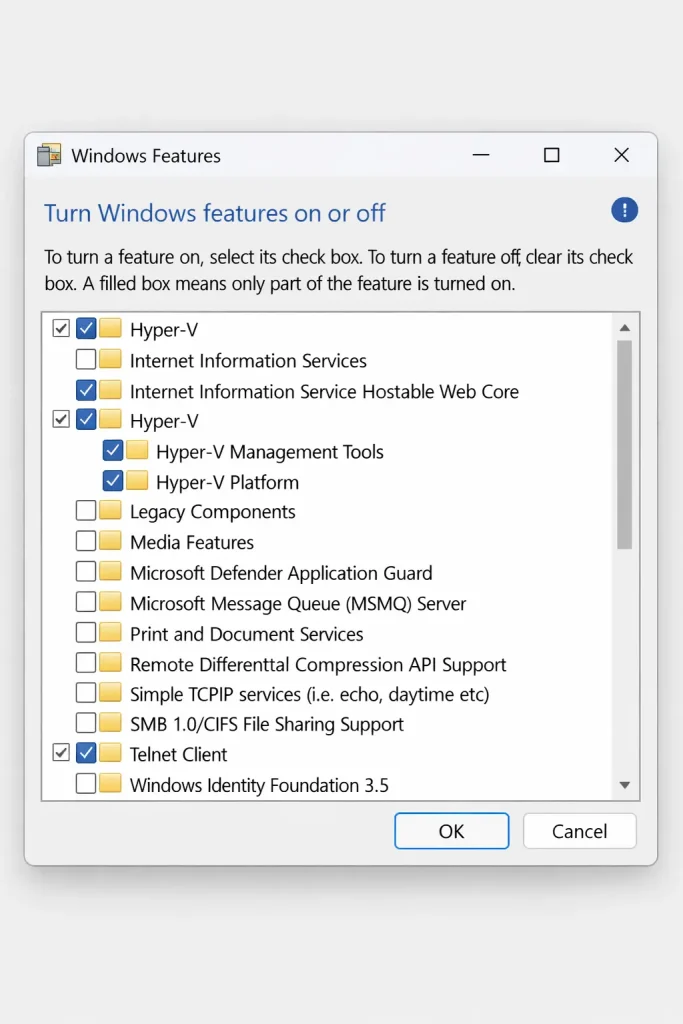
But here’s the catch — sometimes these show as enabled in the UI but the underlying service didn’t restart cleanly after the update. If the boxes are already checked, uncheck both, reboot, then re-check them and reboot again. Annoying, but it forces a clean re-registration.
Step 5: Check antivirus and Defender exceptions
Add exclusions for docker.exe, com.docker.backend.exe, vmmem, and wsl.exe. Third-party antivirus tools are worse about this than Defender, in my experience — they tend to re-scan and re-flag binaries after any update that changes file hashes.
Step 6: Re-register the WSL distro (careful with this one)
wsl --list -vIf docker-desktop or docker-desktop-data shows as stopped or broken, you can unregister and let Docker recreate it. Don’t touch your own development distro by mistake here — double-check the name before running --unregister.
Step 7: Factory reset Docker Desktop
Settings > Troubleshoot > Reset to factory defaults. This wipes your containers and images, so back up anything you need first. It’s the nuclear option, and honestly it fixes things mainly because it forces every permission and registration to rebuild from scratch — not because there’s anything magic about it.
What Actually Worked For Me
I’ll be honest, my first instinct was to blame Docker Desktop itself, since it had also auto-updated around the same time. I spent a good chunk of time restarting services, toggling Hyper-V off and on, even fully uninstalling and reinstalling Docker Desktop. None of that fixed it.
What actually did it was almost embarrassingly simple — I checked lusrmgr.msc on a hunch after remembering a comment buried in a GitHub issue thread, and sure enough, my account wasn’t in docker-users anymore. Added it back, signed out fully (not just locked the screen), signed back in, and Docker started without complaint. The reinstall I did earlier was completely unnecessary, which still bugs me a little.
So yeah — check the group membership first. It would’ve saved me an hour.
Advanced Fixes and Edge Cases
If the steps above don’t resolve it, a few deeper diagnostic paths:
- Event Viewer. Check Applications and Services Logs > Microsoft > Windows > Hyper-V-Compute. Errors here often point at the virtual machine platform failing to initialize, which looks like an access issue from Docker’s side but isn’t really about permissions at all.
- Docker’s own log file. Located at
%LOCALAPPDATA%\Docker\log.txt. It’s verbose, but searching for “denied” or “pipe” usually narrows things down faster than guessing. - Pipe permissions via icacls. You can inspect named pipe ACLs with Process Explorer or by querying the security descriptor directly — not something most people need, but it’s the actual ground truth if you suspect the ACL reset theory.
- vmcompute service restart.
net stop vmcomputefollowed bynet start vmcomputesometimes clears a stuck state that a full reboot doesn’t, oddly enough. - BIOS/UEFI virtualization settings. Rare, but some laptop vendors push firmware updates alongside Windows updates, and occasionally that resets virtualization settings in BIOS. Not 100% sure why this happens on certain models more than others, but it’s worth a quick check if nothing software-side explains it.
Prevention Tips
- Don’t let Windows Update force a reboot mid-build — finish or stop active container builds first.
- After any major Windows feature update, check your docker-users group membership before assuming everything’s fine.
- Keep Docker Desktop’s version reasonably current so its expected WSL kernel ABI doesn’t drift too far from what Windows ships.
- If your work machine is domain-joined, ask IT to flag Docker/WSL permissions as something to preserve across policy refreshes — saves a support ticket later.
- Your mileage may vary depending on which update channel (stable vs. fast ring) your machine is on, so don’t assume your fix will match someone else’s exactly.
FAQ
Why does this only happen after Windows updates and not randomly? Because updates are when group memberships, services, and network adapters actually get touched. The rest of the time nothing’s changing, so nothing breaks.
Does reinstalling Docker Desktop fix this permanently? Not really — it fixes the immediate symptom sometimes, but if the group membership issue is the real cause, it can come back after the next update. Better to fix the actual cause.
Is this related to WSL1 vs WSL2? Mostly a WSL2 issue specifically, since WSL1 doesn’t use the same virtualization layer Docker depends on.
Can a VPN client really cause this? That’s not entirely accurate as a standalone cause, let me clarify — VPN clients don’t usually cause the access denied error itself, but they can cause adapter conflicts that look similar and get blamed for the wrong thing.
Will this happen again after the next Windows update? Possibly. There’s no guarantee Microsoft has fixed whatever causes the group reset, so it’s worth knowing these steps rather than treating this as a one-time fix.
Editor’s Opinion
honestly this bug has been around in some form for a while and it still catches people off guard every single time. the fix is usually boring — check a group membership, restart things properly — but everyone (me included) wants to assume it’s something more complicated. if you’re stuck, check docker-users before you nuke your install. that’s the one that gets overlooked the most.
1 thought on “Fix Docker Desktop Access Denied Error on WSL2”