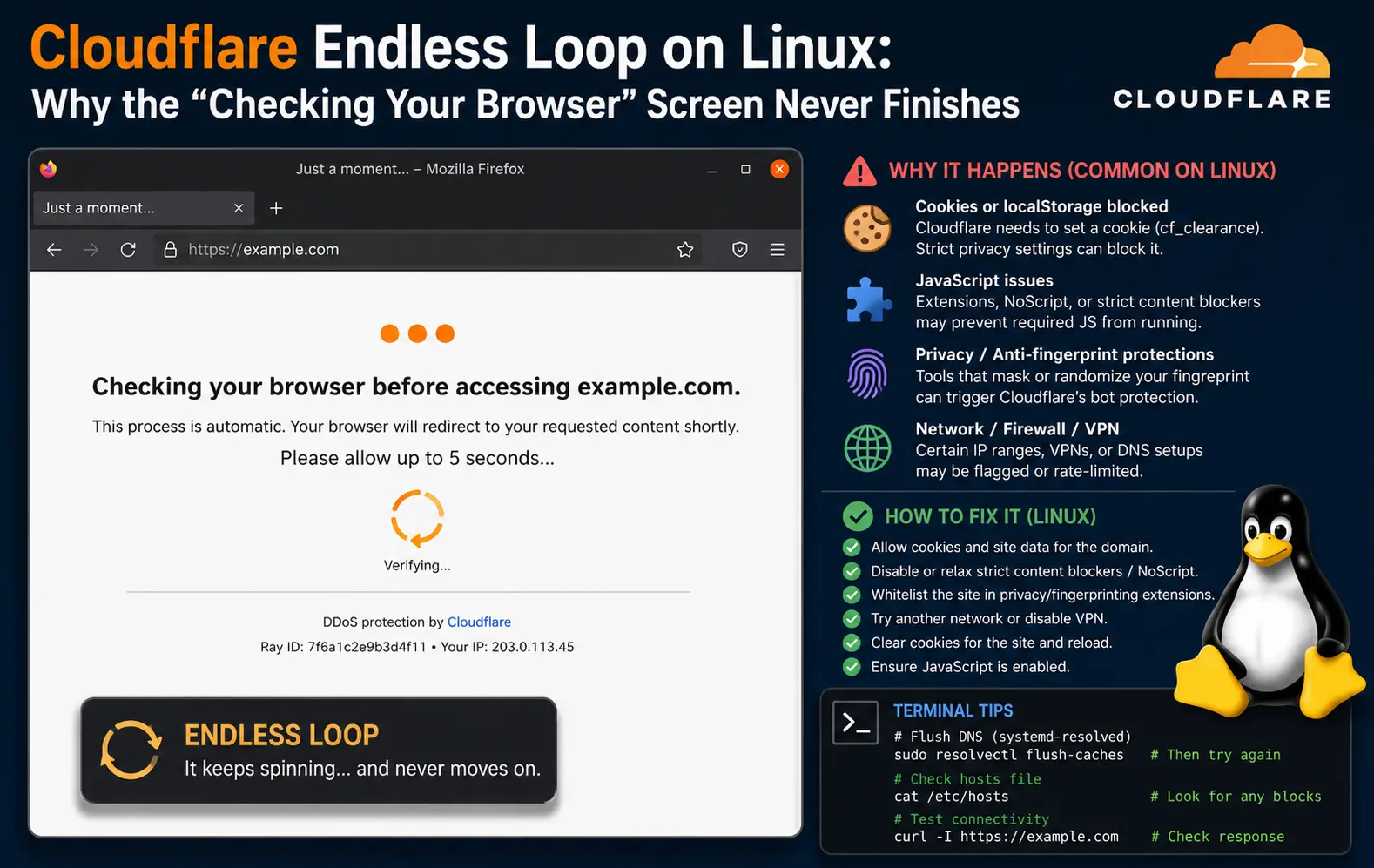
The Cloudflare “Checking if the site connection is secure” loop on Linux browsers isn’t random — it’s almost always a fingerprinting or cookie problem, and it hits Linux users disproportionately hard. I ran into this on a Ubuntu 22.04 machine trying to reach a perfectly legitimate site, watched the spinner go around for a full minute, and eventually got a 403. Took me longer than I’d like to admit to track down why.
Quick Answer
If you’re stuck in the Cloudflare verification loop on Linux:
- Clear site cookies and cache for the domain — stale or corrupted cookies break the challenge flow
- Check your browser’s JavaScript engine — if JS is partially disabled or broken (common with some extensions), Cloudflare’s challenge script can’t complete
- Disable privacy-aggressive extensions like uBlock Origin, Privacy Badger, or Canvas Blockers temporarily
- Try a different user-agent — some Cloudflare configs reject Linux-specific UA strings
- Check system time — clock skew breaks TLS validation and can cause silent loop failures
Why This Keeps Happening on Linux Specifically
Cloudflare’s browser integrity check isn’t just looking at your IP. It runs a JavaScript-based fingerprinting challenge — it checks things like canvas rendering, WebGL support, browser APIs, timing behavior, and cookie handling. The problem is that Linux browser environments tend to diverge from what Cloudflare’s models expect.
Windows Chrome and macOS Safari generate very “normal” fingerprint signals. A headless-ish Firefox on a minimal Debian install with aggressive privacy settings? That looks weird. And Cloudflare’s bot detection, from what I’ve seen, is tuned pretty aggressively for that kind of profile.
The other thing people miss: this isn’t always a browser problem. Sometimes it’s the system. Here’s what actually causes the loop:
JavaScript execution failure. Cloudflare’s challenge page loads a JS script that has to run, complete, and set a specific cookie (cf_clearance) before your browser gets forwarded. If anything interrupts that script — a content blocker, a broken extension, NoScript, even a weird proxy configuration — the challenge never resolves. The page just reloads. Endlessly.
Clock skew. This one catches people off guard. If your system clock is more than a few minutes off, TLS certificate validation can fail in subtle ways, and Cloudflare’s challenge response gets rejected. I’ve seen NTP sync issues on Linux VMs cause this exact loop — the browser appears to be working fine, but everything’s dying silently in the handshake layer.
Corrupted or mismatched cookies. If you’ve visited the site before and have an old cf_clearance cookie that’s expired or mismatched to the current challenge session, Cloudflare will loop indefinitely trying to reconcile it. Clearing site-specific cookies is step one for a reason.
User-agent filtering. Some sites configure Cloudflare to apply stricter rules to non-Windows, non-Mac user agents. Linux UA strings — especially with Firefox — can get pushed into a higher security tier where the challenge is effectively impossible for a normal browser to pass. That’s not entirely accurate, let me explain — the challenge can pass, but some configurations have bugs or overly tight constraints that make it near-impossible without spoofing the UA string.
VPN or Tor exit node reputation. If you’re on a VPN (which a lot of Linux users are), your exit IP might be flagged. Cloudflare maintains IP reputation lists. High-risk IPs get the loop forever.
Step-by-Step Fixes
Step 1: Clear Cookies and Cache for the Domain Only
Don’t nuke your whole browser session. Target just the problem site.
In Firefox:
- Go to the site that’s looping
- Click the lock icon in the address bar → Clear cookies and site data
- Or:
Settings → Privacy & Security → Cookies and Site Data → Manage Data— search for the domain and remove it
In Chrome/Chromium:
Settings → Privacy and security → Cookies and other site data → See all site data and permissions- Search the domain, delete all entries
After clearing, do a hard reload (Ctrl+Shift+R) and try again before anything else.
[Image: Firefox “Clear cookies and site data” dialog showing a specific domain selected, not the full browser history]
Step 2: Disable Extensions Temporarily
Kill all extensions. Seriously, all of them. Then reload the page.
If it works, re-enable them one at a time. The usual suspects:
- uBlock Origin — especially if you have custom filter lists
- Privacy Badger
- Canvas Blocker / Font Fingerprint Defender
- NoScript or Script Safe
- HTTPS Everywhere (can interfere with redirect chains)
Canvas Blocker is the one I’ve seen cause this most consistently. It breaks the fingerprint signal Cloudflare expects, and the challenge script silently fails.
Step 3: Check and Fix Your System Clock
bash
timedatectl statusLook at System clock synchronized — it should say yes. If it doesn’t:
bash
sudo systemctl enable --now systemd-timesyncd
sudo timedatectl set-ntp true
Or if you’re using ntpd:
bash
sudo ntpdate -u pool.ntp.orgSmall drift probably won’t matter. But I’ve seen 8–10 minute skews on VMs with suspended/resumed states, and that’s enough to cause problems.
Step 4: Try Spoofing the User Agent
This works more often than you’d expect, and I’m mildly annoyed that it’s necessary.
In Firefox, install the User-Agent Switcher and Manager extension and set it to a Windows 10 Chrome string. Something like:
Mozilla/5.0 (Windows NT 10.0; Win64; x64) AppleWebKit/537.36 (KHTML, like Gecko) Chrome/124.0.0.0 Safari/537.36Reload the page. If you get through, the site has Cloudflare configured to distrust Linux user agents specifically. Your mileage may vary on whether this keeps working — some sites fingerprint deeper than just the UA.

Step 5: Switch Browsers or Profiles
If Firefox is looping, try Chromium (not Chrome — install chromium-browser from your distro’s repo). A clean browser profile with no extensions and no custom settings is the cleanest test environment you can get.
Sometimes the issue is Firefox-specific. I’m not 100% sure why, but from what I’ve seen, Chromium passes Cloudflare challenges more reliably on Linux than Firefox does, possibly because its fingerprint more closely resembles Windows Chromium.
Step 6: Check Your VPN or Proxy
If you’re on a VPN, try disconnecting and hitting the site directly. Cloudflare’s IP reputation system is real and it’s aggressive. Commercial VPN exit nodes get flagged frequently.
If you’re on Tor — yeah, that’s going to loop forever on most Cloudflare-protected sites. That’s intentional.
What Actually Worked For Me
My situation: Debian 12, Firefox 124, uBlock Origin with some custom regional filter lists, and a Mullvad VPN. The site in question was a documentation page, nothing sketchy.
I tried disabling uBlock first — no change. Cleared cookies — no change. Switched off the VPN — still looping. I was starting to think the site had broken Cloudflare config.
Then I remembered a half-forgotten comment from a forum thread about Canvas Blocker, so I disabled it on a whim. Instant pass. The Cloudflare challenge resolved in about two seconds.
So: Canvas Blocker was the culprit. Not uBlock, not the VPN, not the clock. The extension that’s supposed to protect privacy was the thing breaking everything. I left it disabled for that domain and moved on.
The fix came from luck and memory, not systematic debugging. Sometimes that’s just how it goes.
Advanced Fixes and Edge Cases
Diagnosing via Browser DevTools
Open DevTools (F12) before loading the problem page. Go to the Network tab and watch what happens during the Cloudflare challenge.
What you’re looking for:
- Any requests being blocked — look for red entries. If Cloudflare’s challenge script is getting blocked, you’ll see it here.
- The
/cdn-cgi/endpoint — Cloudflare challenge completions go through this path. If you see it failing with a 403 or not appearing at all, the challenge script isn’t completing. - Console errors — switch to the Console tab. Script errors from blocked resources show up here. If you see
Content Security Policyviolations orERR_BLOCKED_BY_CLIENT, something is intercepting the challenge.
This is the fastest way to distinguish “my extension is blocking something” from “Cloudflare is just rejecting me at the IP level.”
Hardened Firefox Profiles (arkenfox/user.js)
If you’re running a hardened Firefox config — especially if you’ve applied the arkenfox/user.js hardening profile — a lot of the settings in there are specifically designed to resist fingerprinting. Which is great for privacy. But it also means Cloudflare’s challenge will almost certainly fail.
The relevant settings that break Cloudflare challenges:
privacy.resistFingerprinting = true— this is the big one. It spoofs canvas data, timezone, screen resolution, and more.javascript.options.ionandjavascript.options.baselinejit— some hardened configs disable JIT compilation, which slows JS execution in ways that can cause Cloudflare’s timing-based checks to fail
You don’t have to abandon the hardened profile. Create a separate Firefox profile (firefox -P) for sites that require Cloudflare challenge completion, with a cleaner config.
Checking for TLS Interception
If you’re on a corporate network or using certain security tools (like mitmproxy or Charles Proxy for debugging), TLS interception can cause Cloudflare challenges to fail. The certificate your browser sees won’t be Cloudflare’s — it’ll be the proxy’s re-signed cert — and the fingerprint check may fail as a result.
Run:
bash
curl -v https://[problem-site.com] 2>&1 | grep "subject:"Check that the certificate subject matches what you’d expect. If it’s showing a corporate CA or proxy cert, your traffic is being intercepted.
Fixes That People Recommend But Rarely Work
- Disabling IPv6 — occasionally relevant if your IPv6 address is flagged, but usually not the issue
- Changing DNS servers — Cloudflare challenges don’t resolve through DNS, so switching to 1.1.1.1 won’t help
- “Just use incognito” — incognito clears cookies but keeps extensions active by default. If an extension is the problem, this does nothing
- Reinstalling the browser — the problem is almost never the browser binary itself
Prevention Tips
- Keep a clean browser profile specifically for sites that need Cloudflare to work — extensions off, default settings
- Make sure NTP sync is running and stable, especially on VMs
- If you use Canvas Blocker or similar tools, configure per-site exceptions rather than blanket blocking
- Rotate VPN exit nodes if one gets flagged — most clients let you switch servers easily
FAQ
Why does this only happen on Linux and not on Windows with the same browser?
Partly fingerprinting, partly user-agent reputation. Linux desktop environments represent a tiny percentage of real human web traffic, so Cloudflare’s models are tuned differently for them. A Linux Firefox profile with privacy extensions looks more like a bot than a Windows Chrome profile with the same extensions.
Can I fix this without disabling my privacy extensions?
Sometimes. Adding the site to your extension’s whitelist — rather than fully disabling the extension — is worth trying first. But Canvas Blocker and fingerprint-resistant settings are hard to selectively allow without defeating their purpose.
Is this a Cloudflare bug or a Linux bug?
Neither, really. It’s a tension between how Cloudflare’s bot detection works and how Linux users (especially privacy-conscious ones) configure their browsers. No one’s going to fix it.
The site worked yesterday and now it’s looping. What changed?
Could be that the site tightened its Cloudflare security tier. Could be that your cf_clearance cookie expired and the re-challenge is failing. Start with clearing site cookies — that fixes this specific scenario more often than anything else.
Does this affect curl or wget too?
Yes, but differently. Command-line tools can’t execute the JavaScript challenge at all, so they’ll just get blocked outright rather than looping. If you need to scrape a Cloudflare-protected site programmatically, that’s a separate problem with different solutions.
Editor’s Opinion
canvas blocker was the last thing i thought to check and the first thing that fixed it. the real annoyance here is that cloudflare gives you zero useful feedback — same blank spinning screen whether the problem is your ip, your clock, your extensions, or some obscure fingerprint mismatch. you’re just supposed to guess. on linux you almost always end up guessing in the wrong direction first because the obvious stuff (vpn, cookies) rarely turns out to be it. clean browser profile saved me like 3 times now. just keep one.
4 thoughts on “Cloudflare Endless Loop on Linux: Why the “Checking Your Browser” Screen Never Finishes”