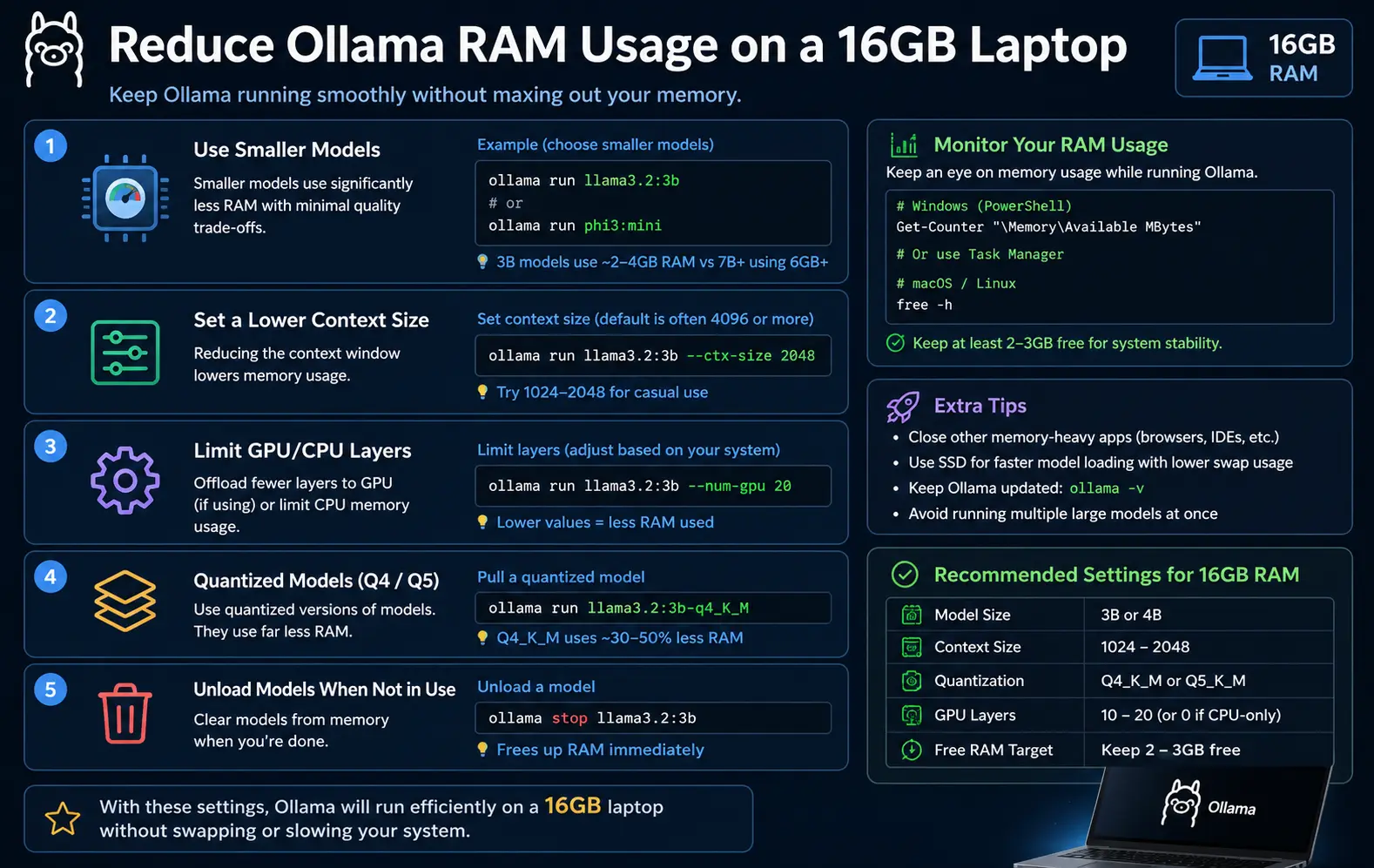
I run Ollama on a 16GB laptop, and the first time I loaded a 13B model, my system basically choked — Chrome tabs crashed, Slack froze, and the fan sounded like it was preparing for takeoff. If you’re dealing with the same thing, reducing Ollama RAM usage on a 16GB laptop is mostly about picking the right model size, quantization, and a few config tweaks that aren’t obvious from the docs. Let’s get into what actually helped.
Why Ollama Eats So Much RAM
Ollama loads the entire model into memory before it does anything useful, and on a 16GB machine that leaves very little room for everything else you’re running.
A few real causes behind the RAM spike:
- Model size vs available memory. A 13B model at full precision can need 26GB+ just for weights. Your 16GB laptop was never going to hold that comfortably.
- Quantization level. Lower quantization (like Q4) uses way less RAM than Q8 or F16, but a lot of people don’t realize they’re pulling the heavier version by default.
- Context length. Bigger context windows reserve more memory upfront, even if you’re not using all of it in a given session.
- Multiple models loaded at once. Ollama keeps models in memory for a while after use (the keep-alive setting), so if you switch models often, you can end up with two sitting in RAM simultaneously.
- Background processes. Browser tabs, Docker containers, and IDE extensions all compete for the same memory pool, and Ollama doesn’t know or care that you’ve got 40 Chrome tabs open.
So it’s rarely just “Ollama is bad at memory.” It’s usually a combination of model choice and what else is hogging your system.
Quick Answer
If you just want the short version:
- Use a quantized model (Q4_K_M or lower) instead of the default F16 build
- Stick to 7B models or smaller on 16GB systems — 13B is pushing it, 30B+ isn’t realistic
- Lower the context window with
num_ctxif you don’t need long conversations - Set
OLLAMA_KEEP_ALIVEto a short duration so models unload when idle - Close memory-heavy apps (browsers, Docker, IDEs) before running larger models
That covers most cases. But if you’re still hitting swap or crashes, keep reading — there’s more going on underneath.
Common Scenarios Where This Hits Hardest
This shows up differently depending on what you’re doing:
Running coding assistants locally. If you’re using something like a code-completion model alongside VS Code and a few browser tabs, you’re already competing for memory before Ollama even loads.
Multiple models for different tasks. Switching between a chat model and an embedding model for RAG pipelines means both can end up loaded at once if your keep-alive timing isn’t tuned.
Older laptops with soldered RAM. And this one’s annoying — a lot of 16GB ultrabooks can’t be upgraded. You’re stuck with what you’ve got, so software-level fixes matter more.
Windows vs Linux behavior. From what I’ve seen, Ollama on Windows tends to hold onto memory a bit longer than on Linux, though I’m not 100% sure why — could be how the Windows build handles the model cache.
Step-by-Step Fixes
Step 1: Check What’s Actually Loaded
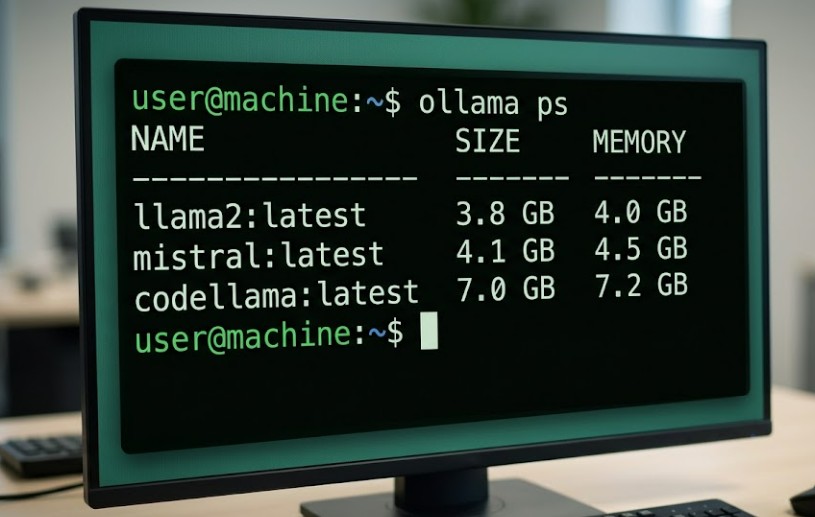
Before changing anything, run:
ollama psThis shows which models are currently loaded and how much memory they’re using. Don’t skip this step — I’ve seen people troubleshoot a “RAM issue” for an hour that was actually two models sitting loaded from earlier sessions.
Image: Terminal output of ollama ps showing model name, size, and memory usage
Step 2: Switch to a Quantized Model
Pull a quantized version instead of the default:
ollama pull llama3:8b-instruct-q4_K_MQ4_K_M is usually the sweet spot — noticeably smaller than Q8 or F16, without the quality drop you’d get from something more aggressive like Q2.
Step 3: Reduce Context Length
If your config or modelfile is using a large num_ctx, bring it down:
PARAMETER num_ctx 2048You don’t need an 8K or 16K context window for most day-to-day chat use. Save the bigger windows for actual long-document tasks.
Step 4: Set a Shorter Keep-Alive
By default, Ollama keeps a model loaded in memory for 5 minutes after your last request. On a tight-RAM laptop, that’s expensive. Lower it:
OLLAMA_KEEP_ALIVE=60sOr set it per-request if you’re scripting things. This alone freed up a good chunk of memory for me when I was bouncing between models.
Step 5: Limit Background Apps
Close Docker Desktop if you’re not actively using containers, and check how many browser tabs are actually doing something versus just sitting there reserved in memory. Sounds obvious, but it’s the step people skip.
What Actually Worked For Me
So here’s where it gets a little embarrassing. I spent a solid afternoon convinced the problem was context length — I kept shrinking num_ctx and barely saw any improvement. Tried clearing the model cache, restarted Ollama a few times, even reinstalled it once because I assumed something was corrupted.
Turned out the real issue was that I had two models loaded simultaneously because my keep-alive was set way too long and I kept switching between a chat model and a code model without realizing the first one hadn’t unloaded yet. A coworker mentioned, almost in passing, “have you checked ollama ps?” — and that was it. Two models, both sitting in memory, neither of which I was actively using.
Lowering the keep-alive and switching to a Q4 quant fixed it within minutes once I actually found the real cause. That’s not entirely accurate, actually — quantization helped, but the keep-alive fix is what made the biggest difference day-to-day.
Advanced Fixes and Edge Cases
If the basics don’t get you far enough, there are a couple of deeper options worth checking.
GPU offloading with limited VRAM. If your laptop has a discrete GPU with its own VRAM, you can offload layers to it instead of system RAM using num_gpu. This helps a lot on hybrid setups, but if your VRAM is also small (4GB or less), you might just be moving the bottleneck rather than solving it.
Swap and memory pressure. On Linux, check free -h while a model is loaded. If you’re seeing heavy swap usage, that’s your system compensating for insufficient RAM, and performance will tank even if it technically “works.” Windows users can check this in Resource Monitor under the Memory tab.
Model architecture differences. Mixture-of-experts models can behave unpredictably on RAM-constrained systems because they load more parameters than they actively use per token, depending on the implementation. This is one of those overlooked causes — people assume a smaller parameter count always means lower RAM use, but MoE architectures don’t always follow that pattern cleanly.
Process isolation. If you’re running Ollama inside Docker on Windows via WSL2, memory limits set in .wslconfig can silently cap what Ollama is allowed to use, even if your laptop technically has more available. Worth checking if memory use looks artificially constrained.
Prevention Tips
- Pull quantized models by default — don’t grab the full-precision version unless you specifically need the accuracy bump
- Set a short keep-alive value as your baseline, not just when you’re troubleshooting
- Check
ollama psperiodically, especially after switching models a few times - Avoid running multiple large models in parallel on 16GB systems — it’s not really a “you might get away with it” situation, it usually just doesn’t work well
- Keep an eye on background apps before starting a long Ollama session
Frequently Asked Questions
Can I run a 13B model on 16GB RAM at all? Technically yes, with a Q4 quant and nothing else heavy running. It’s tight, though, and not something I’d rely on for daily use.
Does closing Ollama fully free up the RAM? Yes, but only if no models are still loaded — running ollama stop <model> or letting keep-alive expire is what actually releases the memory, not just minimizing the app window.
Will more RAM upgrades fix this if my laptop allows it? If your laptop supports upgrades, yes, going to 32GB removes most of these constraints. A lot of 16GB ultrabooks don’t allow upgrades though, so check before assuming this is an option.
Is GPU offloading worth it on a laptop with shared memory? Usually not as effective as on a discrete GPU with its own VRAM. Integrated graphics that share system RAM don’t really solve the underlying problem.
Why does Ollama still show high memory use after I closed the terminal? Because the model server runs in the background, not just in the terminal session. Closing the terminal window doesn’t stop the Ollama service itself.
Editor’s Opinion
honestly this is one of those problems that looks complicated but usually comes down to one dumb setting (keep-alive, in my case). quantization helps but people overestimate how much — the real win is making sure you’re not loading two models at once without noticing. check ollama ps before you go down any rabbit holes, save yourself the afternoon i lost.
1 thought on “How to Reduce Ollama RAM Usage on a 16GB Laptop”