I started using NotebookLM for this after getting tired of pausing lecture videos every thirty seconds to type notes by hand. Turns out you can feed it a YouTube video directly, and it’ll pull the transcript and organize it into something actually usable — but there are a few settings and prompt tricks that make the difference between generic bullet points and notes you’d actually study from. Here’s how I’ve got it set up now.
Quick Answer
- NotebookLM can ingest a YouTube URL directly as a source, no separate transcript extraction needed
- It only works reliably on videos that have captions available, auto-generated or manual
- Use specific prompts (not just “summarize this”) to get study-note formatting instead of generic paragraph summaries
- The Notebook Guide feature can auto-generate FAQs, study guides, and briefing docs from the same source
- Long videos (over 1-2 hours) sometimes need to be broken into sections for more accurate note generation
Why Just Pasting a Transcript Isn’t the Best Approach
You can technically copy-paste a raw transcript into NotebookLM as a text source, and it’ll work, but going through the YouTube URL ingestion method directly tends to produce cleaner source attribution and lets NotebookLM reference specific moments in the video more accurately. There’s also a practical reason to prefer this: raw transcripts from YouTube (especially auto-generated ones) come without punctuation or speaker breaks, which makes it harder for the model to identify natural section boundaries — NotebookLM’s direct ingestion handles this a bit more gracefully than a wall of unformatted text.
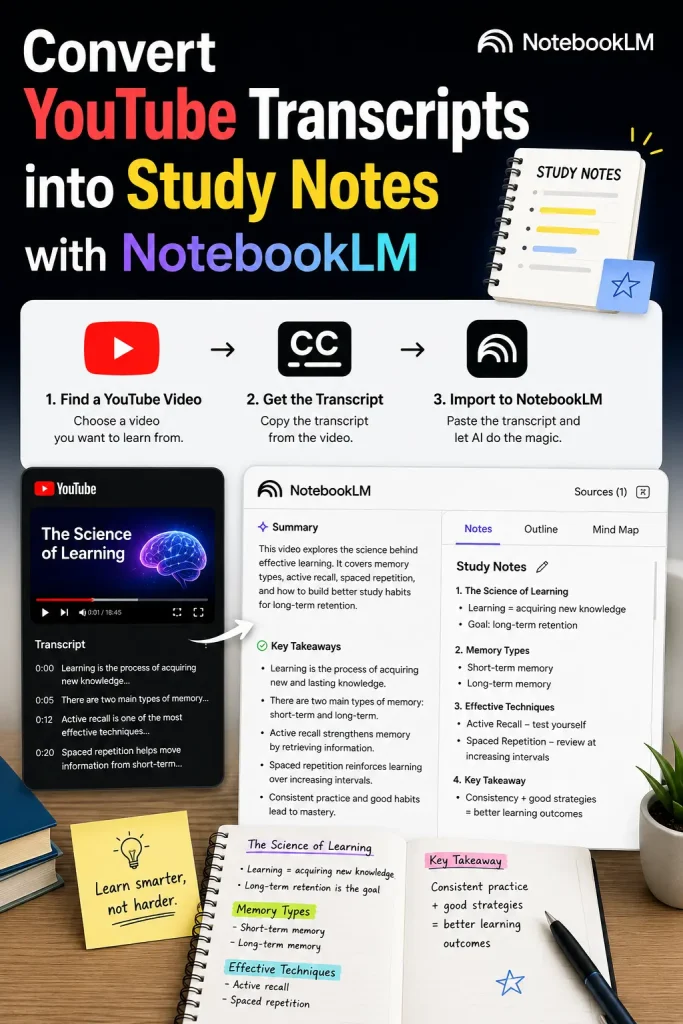
Step-by-Step: Setting This Up
Step 1: Open NotebookLM and Create a New Notebook
Go to notebooklm.google.com, sign in with a Google account, and start a new notebook. Give it a name related to the course or topic so you’re not hunting through generic “Untitled notebook” entries later.
Step 2: Add the YouTube Video as a Source
Click “Add source,” choose the YouTube option, and paste the video URL directly. NotebookLM pulls the caption track automatically — this only works if the video has captions available, so it’s worth checking that first if you’re adding something obscure or very recently uploaded, since auto-captioning can take time to generate on YouTube’s end.
Step 3: Let It Process, Then Check the Source Summary
NotebookLM generates a short automatic summary once it’s finished pulling the transcript. This is a quick way to confirm it actually grabbed the full video content and not just a partial caption track, which can happen occasionally with longer videos.
Step 4: Use Specific Prompts Instead of Generic Ones
This is really where the quality difference shows up. Instead of typing “summarize this,” try something more structured, like:
“Create study notes from this video organized by topic, with key definitions, examples mentioned, and any numbered steps or processes explained. Use headers for each major topic covered.”
Generic prompts tend to produce flat paragraph summaries. Specific formatting instructions get you something closer to actual study notes you can scan quickly.
Step 5: Use the Notebook Guide Panel for Pre-Built Formats
NotebookLM’s Notebook Guide includes buttons for generating a study guide, FAQ, briefing document, or timeline directly from your sources without needing to write a custom prompt. The “Study Guide” option specifically tends to produce a decent first pass at organized notes, which you can then refine further with follow-up prompts.
Step 6: Ask Follow-Up Questions to Fill Gaps
If the notes miss something you know was covered, or you want more detail on a specific section, just ask directly in the chat — “expand on what was said about [specific topic] around the middle of the video.” NotebookLM references the source material directly rather than making things up, which matters a lot for study accuracy compared to some other AI tools.
Getting Better Results From Longer Videos
For videos over an hour, especially dense lecture content, results are noticeably better if you break your requests into chunks rather than asking for one giant summary. Ask for notes on the first third of the content, then the middle, then the end, rather than requesting everything in a single prompt. From what I’ve seen, this produces more detailed and accurate notes overall, since a single mega-prompt on a very long transcript tends to compress detail more aggressively to keep the response manageable.
If the video has clear chapter markers on YouTube itself, you can reference those directly in your prompt (“summarize just the section on [chapter title]”) and NotebookLM will generally handle that scoping correctly, since chapter titles are usually included in the caption metadata it pulls in.
What Actually Worked For Me
I first tried this on a roughly 90-minute conference talk, just asking for “detailed study notes on this whole video” in one shot. What came back was reasonably accurate but noticeably thin on the middle third of the talk — it captured the opening framing and the closing takeaways well, but compressed a big chunk of the actual technical content into a couple of generic sentences.
Breaking the request into three separate prompts, one per rough third of the talk based on the timestamp markers, got me much more usable detail across the whole thing. It took a bit more back-and-forth than I expected going in, and honestly I was a little skeptical chunking it manually would make that much difference, but the notes from each section were noticeably more specific once I did it that way, catching examples and numbers that got dropped in the single-prompt version entirely.
Tips for Better Study Notes Specifically
- Ask for a glossary alongside the notes if the video introduces a lot of terminology — a separate prompt like “list and define all technical terms mentioned in this video” produces a cleaner reference than terms scattered through the notes themselves
- Request examples separately from concepts — asking “list every example or case study mentioned, with which concept it illustrates” tends to surface details that get glossed over in a general summary
- Use the audio overview feature as a review pass, not a replacement for reading — it’s good for reinforcing material you’ve already gone through, less good as your primary study method
- Cross-check dates, numbers, and specific claims against the actual video if precision matters for something like an exam — auto-generated captions occasionally mishear numbers or names, and that error can carry through into the generated notes
Limitations Worth Knowing
Videos without any caption track (rare, but it happens with some older or smaller-channel uploads) won’t work with direct YouTube ingestion — you’d need to generate a transcript through a separate tool first and paste it in as a text source instead.
Auto-generated captions on YouTube aren’t perfect, and NotebookLM’s notes inherit whatever transcription errors exist in the source captions. Technical vocabulary, uncommon names, and heavy accents are the most common places this shows up, so it’s worth a quick scan of anything critical against the actual video.
Very long videos (multi-hour lecture series treated as a single source) can hit practical limits where NotebookLM starts summarizing more broadly rather than pulling specific details, which is part of why breaking requests into sections tends to work better than one giant ask.
FAQ
Do I need a paid Google account for this, or does the free version work? The free version of NotebookLM handles this fine for individual videos and reasonably sized notebooks — you’d only run into limits with very heavy, large-scale usage across many sources.
Can NotebookLM handle a video in a language other than English? Yes, as long as captions exist in that language, though quality of the generated notes depends somewhat on how well NotebookLM handles that specific language versus English.
Is there a video length limit for YouTube source ingestion? There’s no hard published limit, but practically speaking, quality degrades on extremely long content unless you break your prompts into sections as covered above.
Can I add multiple videos to the same notebook and get combined notes? Yes, and this is actually one of NotebookLM’s stronger features — you can ask it to compare or combine information across several video sources in the same notebook, which is useful for pulling together notes from an entire lecture series.
Does NotebookLM save my notebooks if I close the tab? Yes, notebooks persist under your Google account and you can come back to them later, add more sources, or continue the conversation where you left off.
Editor’s Opinion
this genuinely changed how i take notes from long videos, way less pausing and typing then before. the chunking trick for long stuff is the one thing i’d tell anyone starting out with this, dont just ask for one giant summary and expect it to catch everything, it wont.
1 thought on “How to Convert YouTube Transcripts into Study Notes with NotebookLM”