I tried to dump forty contract PDFs into a single Claude conversation last month, thinking I’d just get a batch summary in one shot, and watched it fall apart around file thirty. If you’re trying to process PDFs with Claude at any real scale, the fix isn’t a bigger context window — it’s changing how you feed the documents in the first place. Here’s the setup that actually got me through a folder of over a hundred files without losing my mind or my afternoon.
Quick Answer
- Use the Files API to upload each PDF once and reference it by
file_idinstead of re-sending base64 data every call - Split anything over 100 pages — that’s a hard per-file limit, not a soft warning
- Use the Message Batches API for bulk jobs; it processes asynchronously at half the cost of live calls
- Route documents with a cheap classification pass before sending full content to a bigger model
- Use prompt caching if you’re asking multiple questions against the same document
Why This Breaks Down at Scale
People assume the problem is the context window. So it’s tempting to reach for a “just use the model with the biggest context” fix and call it done. That’s not entirely accurate, though — the real bottleneck is usually one of three things, and none of them is solved by a bigger window alone.
The 100-page hard limit. Every PDF sent to Claude, whether through the chat interface or the API, hits a firm cap of 100 pages per file. This isn’t a soft guideline that degrades gracefully — it’s enforced at the model level, and it doesn’t change based on plan or endpoint. A 150-page report just won’t go in as one file, full stop.
Request payload size. Separately from the page count, there’s a 32 MB cap on the total request payload for PDFs sent inline. Base64 encoding inflates file size by roughly a third, so a PDF that looks like 24 MB on disk becomes close to 32 MB once encoded — right at the ceiling. This one caught me off guard the first time, because the file browser showed a size well under the limit.
Re-uploading the same content over and over. If you’re sending the same PDF as base64 in every single request, you’re paying to re-process it each time and burning through your context budget doing it. Nobody notices this until the bill or the token count looks weirdly high for what felt like a simple job.
There’s also a quieter fourth cause people tend to skip past: dense PDFs — small fonts, packed tables, lots of graphics — can burn through the context window well before they hit the page limit. A 90-page dense financial report can eat more tokens than a 100-page document of plain prose.
Common Scenarios Where This Comes Up
Legal and compliance teams processing contract batches run into this constantly, since every contract needs individual attention but the workflow only makes sense in bulk. Research teams summarizing a folder of academic papers hit it too — each paper is under the page limit alone, but the “summarize all fifty” request isn’t really one request, it’s fifty. And anyone building a document Q&A tool on top of an existing archive eventually has to decide between shoving everything into context per query or building something closer to a real retrieval setup.
Technical Comparison: Which Approach Fits Which Job
| Approach | Best For | Trade-off |
|---|---|---|
| Files API + file_id reference | Repeated queries against the same set of docs | Requires upload management, but only pays the token cost once per file |
| Message Batches API | One-time bulk processing of 100+ files | Asynchronous — results come back in a batch, not instantly |
| Chunk-and-summarize (two-pass) | Documents over 100 pages | Adds a synthesis step, some detail loss between passes |
| Classification routing | Mixed document types, only some relevant per query | Needs an upfront cheap-model pass, adds a small amount of latency |
None of these are mutually exclusive — most real pipelines I’ve seen end up combining two of them, usually Files API plus batching.
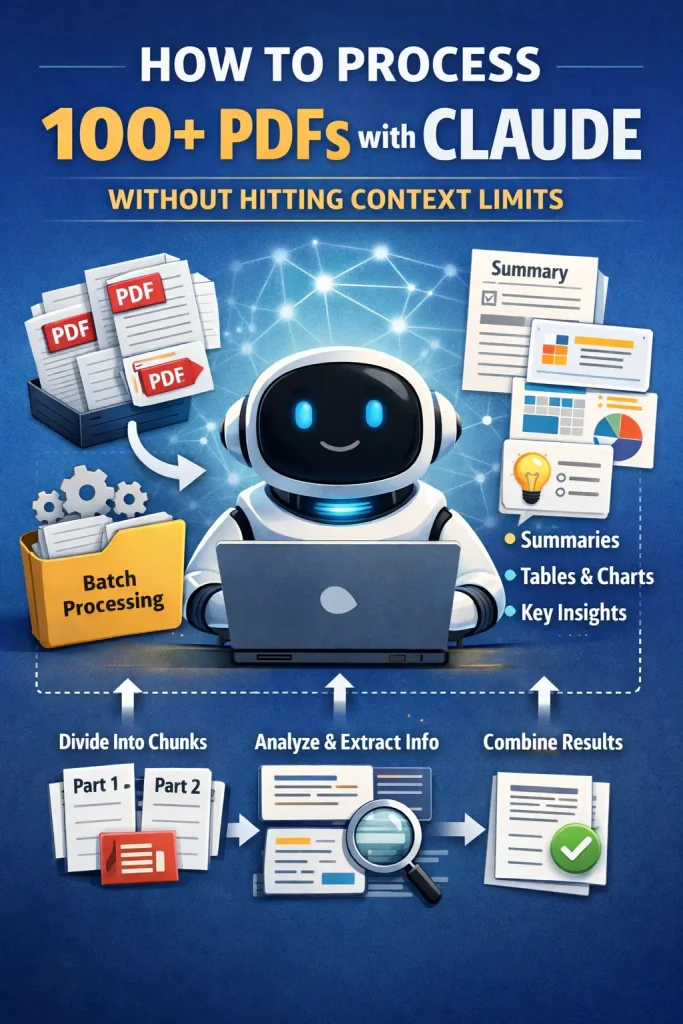
Step-by-Step: Building a Pipeline That Actually Scales
Step 1: Split anything over 100 pages
Before anything else touches the API, check page counts. For documents with a clear structure — chapters, sections, numbered clauses — split along those boundaries rather than arbitrary page cuts. It produces more coherent chunks, since each piece stays semantically complete instead of getting cut mid-thought.
Step 2: Upload through the Files API
Instead of attaching base64 PDF data to every request, upload each file once:
python
import anthropic
client = anthropic.Anthropic()

with open("contract_014.pdf", "rb") as f:
    uploaded = client.beta.files.upload(
        file=("contract_014.pdf", f, "application/pdf")
    )

message = client.beta.messages.create(
    model="claude-sonnet-5",
    max_tokens=1024,
    betas=["files-api-2025-04-14"],
    messages=[{
        "role": "user",
        "content": [
            {"type": "document", "source": {"type": "file", "file_id": uploaded.id}},
            {"type": "text", "text": "Summarize the termination clauses in this contract."}
        ]
    }]
)
Keep a local mapping of filename to file_id. This is the single biggest efficiency gain in the whole pipeline, and it’s easy to skip if you’re just trying to get something working quickly.
Step 3: Check token counts before you commit to a run
The Token Counting API lets you estimate cost and confirm you’re not about to blow past a context limit before you actually send the request. For a batch of a hundred-plus files, running this check first saves you from finding out about an oversized document halfway through an overnight job.
Step 4: Use the Message Batches API for the bulk run
For anything that doesn’t need an instant answer — and processing 100+ PDFs almost never does — the Batches API handles the volume asynchronously at roughly half the per-call cost of live requests. Queue the whole folder, walk away, come back to results.
Step 5: Route before you retrieve, if documents are mixed
If your PDFs vary in type — some contracts, some invoices, some reports — run a cheap, fast classification pass first to figure out which file (or which chunk) a given question actually needs, then only pull the relevant file_id into the full request. This routing step is what separates a pipeline that scales cleanly from one that just gets slower as the folder grows.
What Actually Worked For Me
My first pass at this was embarrassingly naive — I just looped through the folder, sent each PDF as base64 in its own request, and figured that was “processing them individually” so it should be fine. It technically worked, but it was slow, and about a third of the way through I started getting payload size errors on a few of the denser files. Turned out those were the ones with embedded high-res scans padding out the size.
So I switched to the Files API, which fixed the payload problem immediately. But the run was still taking longer than felt reasonable for what was, on paper, a batch job with no real urgency. It wasn’t until I was half-complaining about it to a colleague that he mentioned the Batches API, almost as an aside — I’d genuinely forgotten it existed, having only used it once before on a different project. Queued the whole thing overnight, checked back in the morning, done.
The unexpected cause that actually cost me the most time, though, was a handful of scanned contracts with no real text layer. They were under the page limit and under the size limit, so nothing flagged them as a problem going in — they just came back with noticeably worse extraction quality, and I didn’t catch it until I spot-checked a summary against the source.
Advanced Fixes and Edge Cases
Two-pass summarization for very long documents. For anything that’s genuinely long even after splitting — a 300-page manual broken into three 100-page pieces, say — run a first pass that summarizes each chunk, then a second pass that synthesizes the chunk summaries together. It costs an extra round trip but keeps each individual call comfortably inside a reasonable token budget.
Prompt caching for repeated queries against one document. If you’re asking a dozen different questions against the same contract or report, caching the document content means you’re not re-processing it fully on every single question. This is the fix that’s commonly skipped, and it’s the one that saves the most on a document you’re querying repeatedly rather than once.
OCR pre-processing for scanned documents. If a PDF is genuinely image-only with no text layer, Claude falls back to vision-based reading, and accuracy drops for small fonts or noisy scans. Running the document through OCR first, then feeding cleaner extracted text, tends to outperform relying on vision alone for that specific case — though for documents with charts or layout that matters, the vision path still has real value.
Fixes That Sound Right But Rarely Help
Just switching to a model with a larger context window, without changing anything else about the pipeline, is the fix people reach for first and the one that helps least. It doesn’t touch the 100-page-per-file limit, and it doesn’t stop you from re-uploading the same content repeatedly. From what I’ve seen, the actual wins come from restructuring how documents move through the pipeline, not from a bigger window absorbing the same bad habits.
Prevention Tips
- Check page counts and file sizes before a batch run starts, not after it fails
- Keep a persistent file_id mapping so you never re-upload the same document twice
- Spot-check a sample of extracted content against source documents, especially for scans
- Default to the Batches API for anything without a real-time requirement
FAQ
Can I just upload one giant merged PDF instead of a hundred separate ones? No — you’d hit the same 100-page limit, just faster, and you’d lose the ability to reference documents individually.
Does the Files API cost extra compared to sending PDFs inline? No additional PDF fee applies either way; you’re paying standard token costs, but the Files API avoids re-paying for the same content across repeated calls.
How long does a Batches API job usually take? It varies with volume and load. It’s asynchronous, so budget for it to run in the background rather than expecting an immediate response.
Will a scanned PDF work the same as a digital one? Not really. Text layers extract cleanly; scans go through a vision-based process and are more error-prone, especially with small fonts.
What’s the single biggest mistake people make with bulk PDF processing? Sending everything as base64 in individual live requests. It works at small scale and quietly becomes the bottleneck the moment volume goes up.
editor’s opinion
the files api plus batching combo isn’t glamorous but it’s the thing that actually matters here — everyone wants to talk about context window size and that’s not really the bottleneck for a folder of documents. the 100-page limit is the one that catches people off guard because it feels arbitrary until you understand why it exists. worth setting this pipeline up properly the first time instead of patching it mid-run like i did.