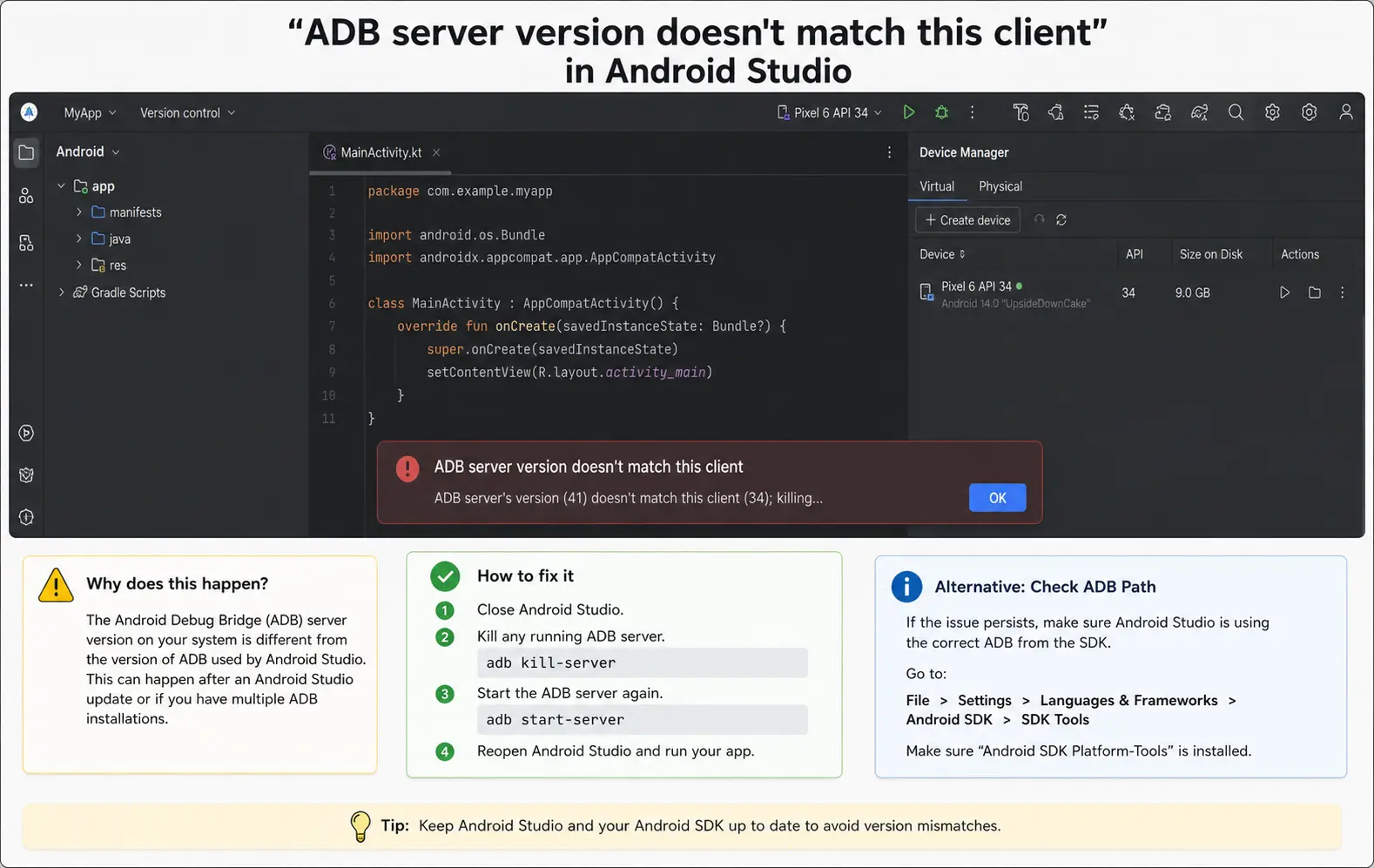
The adb server version doesn’t match this client error shows up the moment ADB tries to talk to itself across two different versions and just… can’t. It’s almost always two separate ADB binaries fighting over the same port, and I’ve hit this enough times switching between Android Studio and command-line tools that I can usually guess the cause before I even read the full error. Let’s get it sorted.
Quick Answer
- Kill the running ADB server with
adb kill-server, then let it restart withadb start-server - If that doesn’t hold, find every adb.exe (or adb on Mac/Linux) on your system — you likely have more than one
- Make sure your PATH points to the same ADB version Android Studio’s SDK is using
- Restart Android Studio after fixing PATH, not just the ADB server, since Studio caches its own daemon connection
If you’re already past the basic restart and still stuck, the rest of this covers why that happens and what actually fixes it long-term.
Why This Actually Happens
The short version: you’ve got two different ADB binaries on your machine, and whichever one started the server first doesn’t match the version the second one expects. ADB enforces a strict version check between client and server specifically to avoid protocol mismatches, so it refuses to proceed rather than risk weird behavior.
Here’s where that mismatch actually comes from, in the cases I’ve actually run into:
1. Android Studio’s bundled ADB vs. a system-wide ADB install. This is the big one. If you’ve installed platform-tools separately (through apt, Homebrew, Chocolatey, or manually downloading the SDK platform-tools zip) and you’ve got Android Studio’s own SDK manager-installed ADB, you now have two binaries. Whichever one starts first claims the ADB server port (5037 by default), and the other one — different version — throws this error the moment it tries to connect.
2. Genymotion, BlueStacks, or another Android emulator running its own ADB. A lot of third-party emulators ship their own ADB binary and start their own server automatically when the emulator launches. If you open Genymotion, then open Android Studio, you’ve potentially got a version conflict before you’ve even tried to debug anything.
3. Stale ADB process that didn’t fully exit. Sometimes a previous ADB server process hangs around after a crash, system sleep, or an IDE force-quit, holding the port with an old version while a newer client tries to connect.
4. SDK platform-tools updated in Android Studio but PATH still pointing to an old copy. Android Studio updates its bundled platform-tools periodically. If your system PATH has an older platform-tools folder listed before the new one, your terminal commands hit the old ADB while Studio itself uses the new one.
One cause that’s easy to miss: Scrcpy, or other phone-mirroring tools that bundle their own ADB. These tools are popular and a lot of people forget they install a private ADB copy that can start its own server in the background, especially if set to auto-launch on boot.
Common Scenarios
- Right after updating Android Studio or the SDK platform-tools through the SDK Manager
- Using WSL2 on Windows with adb installed both inside WSL and on the Windows host — this one’s particularly nasty because the two environments don’t share a process list, so killing the server from one side doesn’t touch the other
- Running a CI/CD pipeline where a Docker image has a different ADB version baked in than what the host expects
- Switching between two Android Studio installations (say, stable and a Canary/Beta build) that point to different SDK folders
Step-by-Step Fixes
Step 1: Kill and restart the ADB server
This is the obvious first move and it does work sometimes, even if not permanently. Open a terminal:
bash
adb kill-server
adb start-server
If the error’s gone, great. But if it comes back the next time you connect a device or start an emulator, that means something is auto-launching the other ADB version again, and you’ll need to go further.
Step 2: Find every ADB binary on your system
On Windows, open Command Prompt and run:
where adbOn Mac/Linux:
bash
which -a adbImage: Terminal output from which -a adb showing multiple paths to different adb binaries

If this returns more than one path, that’s your conflict, confirmed. Note each path down.
Step 3: Check the version of each ADB binary
For each path found in Step 2:
bash
/path/to/adb versionYou’ll usually see two different version numbers here, which confirms the mismatch directly rather than guessing at it.
Step 4: Fix your PATH to point at the correct one
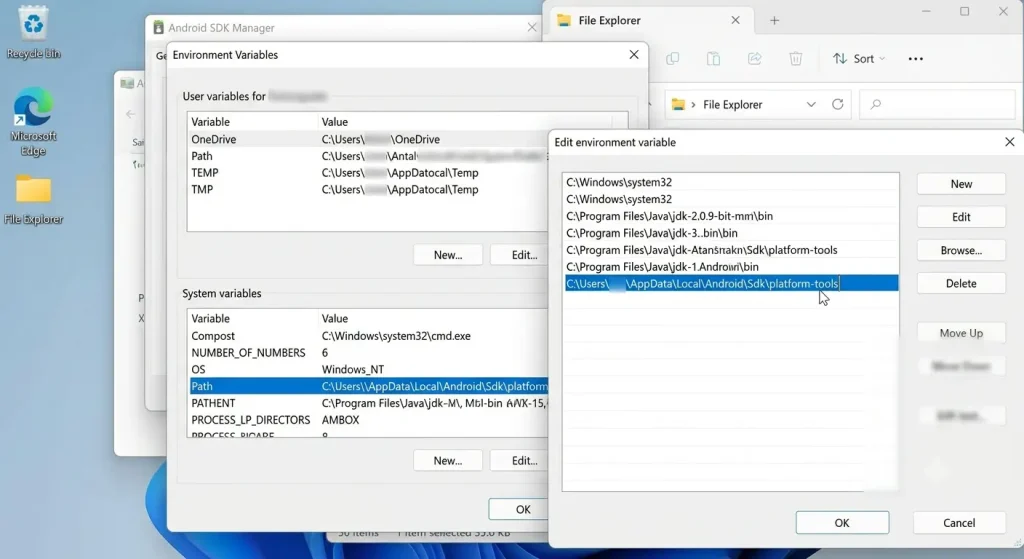
Decide which ADB you actually want as your default — usually Android Studio’s bundled one, found under your SDK location, something like:
<Android SDK path>/platform-tools/adbOn Windows, this is typically C:\Users\<you>\AppData\Local\Android\Sdk\platform-tools.
Edit your PATH environment variable so this folder comes before any other platform-tools location. On Windows, that’s through System Properties → Environment Variables. On Mac/Linux, edit your shell config (~/.zshrc, ~/.bashrc) and make sure the correct export line comes after any conflicting one, or remove the conflicting one entirely.
Image: Windows Environment Variables dialog showing the platform-tools path being edited in the PATH variable
Step 5: Close other ADB-dependent tools before launching Android Studio
If you’ve got Genymotion, BlueStacks, Scrcpy, or any phone-mirroring app open, close them fully (check your system tray / background processes, not just the window) before opening Android Studio. Then run adb kill-server once more for good measure, and let Studio start its own server fresh.
Step 6: Restart Android Studio itself
And this part actually matters — don’t skip it. Android Studio caches a connection to the ADB daemon at startup, so even after fixing PATH and killing the server, Studio might still be holding onto its old connection info until you restart it.
What Actually Worked For Me
So this one was almost embarrassingly simple once I found it, but it took longer than it should have because I assumed the wrong cause first.
My first instinct was that Android Studio’s SDK had gotten corrupted somehow, because that’s usually my go-to assumption when IDE tooling acts weird. I went into SDK Manager and reinstalled platform-tools. Restarted Studio. Error came right back, immediately, on the first emulator launch.
Turned out I had Scrcpy installed for mirroring my phone to my desktop, and it had quietly started its own ADB server in the background — I genuinely didn’t remember installing it months earlier with that auto-start setting on. So Android Studio’s ADB client kept trying to talk to a server that Scrcpy’s older bundled ADB had already claimed.
Closing Scrcpy fully (it runs in the system tray even when the window’s closed, which I’d forgotten) and running adb kill-server followed by reopening Android Studio fixed it instantly. No SDK reinstall needed at all — that whole step was wasted effort, which, in hindsight, I probably could’ve skipped if I’d just run which -a adb first instead of guessing.
Advanced Fixes and Edge Cases
Checking what’s actually holding port 5037. ADB’s server listens on TCP port 5037 by default. On Windows, run netstat -ano | findstr 5037 to see the process ID holding that port, then cross-reference it in Task Manager. On Mac/Linux, lsof -i :5037 does the same thing. This tells you definitively which process owns the server, rather than guessing based on which apps you remember having open.
WSL2 and Windows host ADB conflicts. If you’re developing inside WSL2 but also have ADB installed on the Windows side, these are genuinely separate network stacks in some configurations, and killing the server in one doesn’t affect the other. The cleanest fix here is usually to pick one side (commonly the Windows host, since USB device access from WSL2 to physical Android devices can be flaky anyway) and only run ADB from there, then connect WSL2 tooling to it over the loopback adapter rather than running a second independent ADB server inside WSL2.
Setting a custom ADB port to sidestep the conflict entirely. If you genuinely need multiple ADB versions running for different tools (uncommon, but it happens in some CI setups), you can run a second server on a different port:
bash
adb -P 5038 start-serverThis avoids the version conflict by giving each tool its own server instance, though you’ll need to make sure each client connects to the matching port.
Environment Variable ANDROID_HOME or ANDROID_SDK_ROOT pointing at the wrong SDK. If you’ve got multiple SDK installs (maybe an older one from a previous Android Studio version that never got cleaned up), check what ANDROID_HOME actually resolves to versus what Studio’s project structure settings show. A mismatch here is a less common cause but worth ruling out if PATH and port checks both come back clean.
Prevention Tips
- Stick to one source for ADB — let Android Studio manage platform-tools through its SDK Manager and avoid installing a separate copy via package managers unless you have a specific reason to
- Check what auto-starts on boot/login periodically; phone-mirroring and emulator tools quietly add startup entries more often than people expect
- After any Android Studio or SDK update, run
which -a adb(orwhere adbon Windows) once just to confirm nothing’s drifted out of sync - If you use WSL2 for Android development, decide early which side owns ADB and stick with it rather than letting both sides install their own copy
FAQ
Does uninstalling and reinstalling Android Studio fix this? Rarely, and it’s a lot of effort for something that’s usually a five-minute PATH or process fix. Skip this unless you’ve ruled out everything else.
Will adb kill-server lose my connected devices or running emulators? It can briefly disconnect ADB’s view of devices, but they reconnect automatically once the server restarts. Your emulator itself keeps running; only the ADB connection bounces.
Why does this happen specifically after a Windows update? Not 100% sure on the mechanism, but from what I’ve seen reported, Windows updates occasionally reset PATH ordering or reinstall bundled tools tied to other apps, which can quietly promote an older ADB ahead of Studio’s version in PATH.
Is this error specific to Android Studio, or does it happen with Flutter/React Native too? It’s an ADB-level issue, not an IDE-specific one, so yes — it shows up identically in Flutter and React Native projects since they both rely on the same underlying ADB tooling.
Can antivirus software cause this? Indirectly, yes, sometimes. Some antivirus tools sandbox or intercept process launches in a way that can delay one ADB instance starting before another claims the port. It’s not the most common cause but worth a mention if you’ve ruled out the usual suspects.
Editor’s Opinion
this error sounds way scarier than it is. nine times out of ten it’s just two adb binaries that don’t know about each other, usually because some app you forgot about (looking at you, scrcpy) is running its own server quietly in the background. run which -a adb before you do anything drastic like reinstalling the sdk — saves you the wasted step I took.