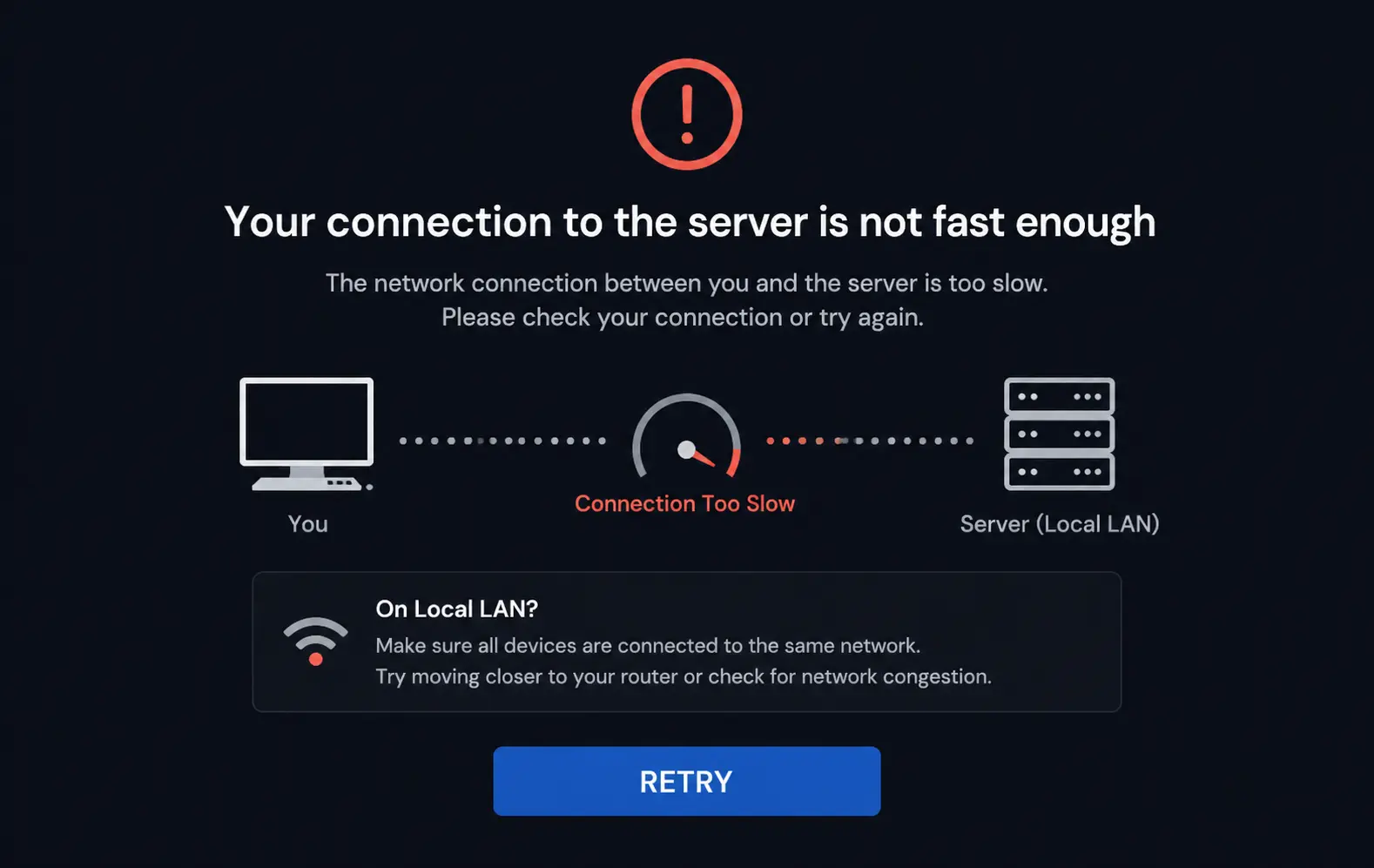
So you’re getting Plex’s “your connection to the server is not fast enough to play this video” message — on your own network, over Ethernet, ten feet from the server. That message is wrong almost every time it shows up on a LAN. I’ve chased this one across three different home setups and it’s never actually been a speed problem. Let’s get into what it actually is.
Quick Answer
If you want the short version before the full breakdown:
- Go to your client’s playback settings and disable “Limit remote stream bitrate” type options, even though you’re on local network — Plex sometimes misclassifies LAN as remote
- Check your server’s “LAN Networks” setting under Network preferences and add your actual subnet if it’s missing
- Force Direct Play instead of letting Plex auto-transcode
- Check CPU usage on the server during playback — most “not fast enough” errors are actually transcoding bottlenecks wearing a networking costume
That covers the bulk of cases. Keep reading if your setup isn’t behaving after those.
Why This Actually Happens
This error message is genuinely misleading, and that’s most of the problem. It says “connection,” but it’s measuring something closer to “can the server produce video data fast enough for the stream to keep up,” which is a CPU and transcoding question way more often than an actual network question.
Here’s what’s really going on, broken into the causes I’ve actually seen hold up:
1. Plex doesn’t recognize your subnet as LAN. This is the single most common cause, and it catches people constantly. Plex Media Server has a setting called “LAN Networks” where you can manually list the IP ranges it should treat as local. If your subnet isn’t a default one Plex recognizes (say you’re on something other than the standard 192.168.1.x or 10.0.0.x range), Plex may treat your local traffic as remote and apply remote streaming bitrate limits to it. That’s the trap — the error message about “connection speed” is real, but it’s measuring against a limit that shouldn’t apply to you at all.
2. Server-side transcoding can’t keep up. If Direct Play isn’t possible — wrong container, subtitle burn-in needed, unsupported codec on the client device — Plex transcodes in real time. Transcoding is CPU-intensive, and if your server’s CPU (or GPU, if hardware transcoding is set up) can’t produce frames fast enough, Plex reports it as the stream not being fast enough, even though your network connection is fine. This is, in my experience, the actual cause behind most LAN “not fast enough” errors, way more often than actual bandwidth.
3. Bitrate limit settings applied globally instead of per-network. Some people set a remote bitrate cap to avoid blowing through home internet upload limits when streaming to family elsewhere. But depending on Plex version and settings, that cap can bleed into local playback if the LAN detection above is misconfigured.
4. Wi-Fi, even “good” Wi-Fi. And this one’s an easy one to overlook because Wi-Fi feels fast enough day to day. But 4K HDR remux files can hit 80-100 Mbps in bursts, and a congested 2.4GHz network, or even a 5GHz network with interference from neighbors, can choke on that even though basic speed tests look fine.
One cause that genuinely surprises people: a USB external hard drive that can’t read fast enough. If your media library lives on a slow USB 2.0 external drive or a network-attached drive with poor read speeds, the server can hit a wall pulling the actual video data off disk, well before networking or CPU ever becomes the bottleneck. It looks exactly like a network error in the client but it’s a storage problem.
Common Scenarios
- 4K remux files (the big ones, 40GB+) failing specifically, while smaller 1080p files play fine
- Plex on a Roku, Fire TV, or smart TV app showing the error, while the desktop app on the same network plays the same file fine — different client capabilities trigger different transcode decisions
- Right after a Plex Media Server update, when settings sometimes reset or shift defaults
- Multiple simultaneous streams on the same server, where one or two streams hits the error while only one was hitting it before
- NAS-hosted Plex servers (Synology, QNAP) where the NAS’s CPU is genuinely underpowered for transcoding 4K content
Technical Comparison
| Cause | Symptom pattern | Fix difficulty |
|---|---|---|
| LAN Networks misconfigured | Error on all files, all devices, on LAN | Easy |
| Server CPU can’t transcode | Error mainly on 4K/HDR or unsupported formats | Medium |
| Slow storage (USB/NAS) | Error on large files, stuttering even with Direct Play | Medium-hard |
| Wi-Fi congestion | Inconsistent — works sometimes, fails other times on same file | Easy-medium |
Not every row here needs a perfect fix — the storage one in particular sometimes just means “buy faster storage,” which isn’t a satisfying answer but is the honest one.
Step-by-Step Fixes
Step 1: Fix the LAN Networks setting first
This solves it outright for a surprising number of people, so start here.
- Open Plex Web App on your server
- Go to Settings → Server → Network
- Find “LAN Networks”
- Add your subnet in CIDR notation — for example,
192.168.1.0/24or whatever matches your actual router’s IP range
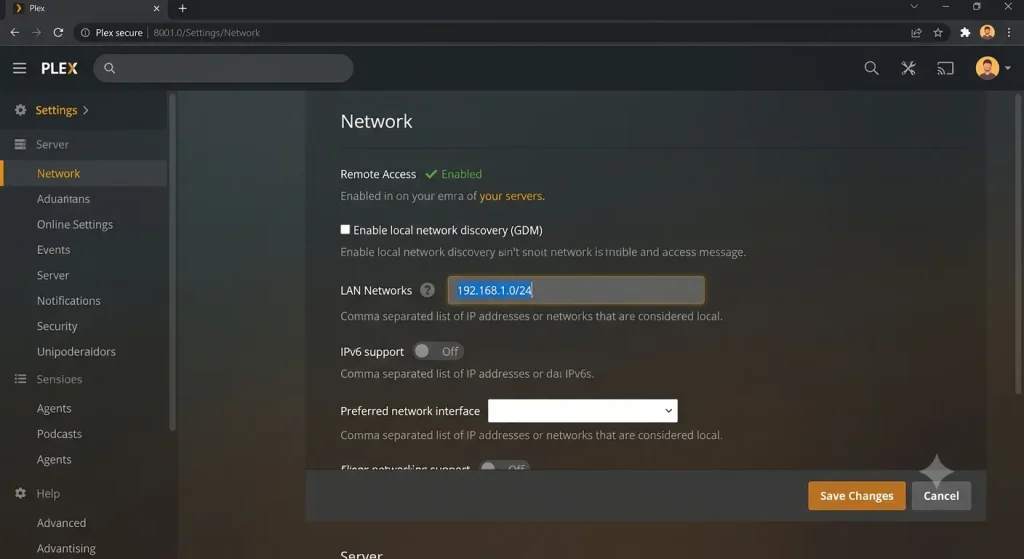
Check your router’s IP range first if you’re not sure — log into your router admin page and look at the LAN/DHCP settings, it’ll usually be listed plainly.
Step 2: Check and disable remote bitrate limits for LAN playback
In the Plex app you’re watching on (not the server settings):
- Go to playback settings (gear icon during playback, or app Settings → Quality)
- Look for “Internet Quality” or “Remote Quality” type settings
- Set to “Original” or the highest available, or check for a separate “Home/Local Quality” setting and max that one out instead
Step 3: Force Direct Play to rule out transcoding
To test whether transcoding is actually the bottleneck, you can temporarily force Direct Play:
- Server Settings → Transcoder
- Lower transcoder quality preference, or
- On the client, manually select “Direct Play” if the option’s available for that file
If the error disappears with Direct Play forced and reappears with transcoding, that’s your answer — it’s a CPU/transcoding issue, not networking, full stop.
Step 4: Check server CPU usage during a failed playback attempt
While streaming the problematic file, check your server’s resource usage. On Windows, Task Manager. On Linux, htop. On Synology/QNAP, the Resource Monitor app.
If CPU is pegged near 100% during the transcode attempt, that confirms it — your server’s CPU isn’t fast enough to transcode that file in real time, and no amount of network troubleshooting will fix it.
Step 5: Test on Ethernet to eliminate Wi-Fi as a variable
If your client device can take a wired connection even temporarily, plug it in and try the same file. If the error disappears, you’ve got a Wi-Fi congestion or signal problem, not a Plex configuration issue, and the fix is router/Wi-Fi side, not Plex side.
What Actually Worked For Me
Okay so this one actually took me a minute to figure out, and I want to be upfront that my first two attempts were both wrong guesses.
First thing I tried was restarting the Plex server, because that’s always the first thing I try with anything. Didn’t help, obviously, in hindsight. Second thing — I assumed it was Wi-Fi, because the affected device was on Wi-Fi and the working device was wired. Swapped the Wi-Fi client to Ethernet. Error still happened. That ruled out my assumption pretty cleanly, at least.
What actually fixed it: I checked Activity in the Plex dashboard while the stream was failing and noticed it said “Transcode” instead of “Direct Play” for a file that should have Direct Played fine on that device — a 1080p H.264 file, nothing exotic. Turned out a subtitle track was forcing a transcode (burn-in subtitles do that), and my NAS’s CPU just couldn’t keep up with even modest transcoding while another stream was already running in the background that I’d forgotten about.
Once I switched the subtitle handling to “Direct Play with no subtitles” for that specific viewing session, the error vanished immediately. Not a network problem at all, despite what the error message insisted.
That’s the thing about this error — it’s worded like a connection issue, but that’s not entirely accurate, and chasing the network angle first is probably the most common wasted troubleshooting hour in the whole Plex community.
Advanced Fixes and Edge Cases
Check Plex Dashboard’s Activity tab for the real verdict. Don’t guess — go to Plex Web App → Settings (or the dashboard icon) → Activity, while the problematic stream is running. It tells you directly whether the stream is Direct Playing, Direct Streaming, or Transcoding, and gives a reason. This is the single most useful diagnostic step and a lot of people skip straight past it.
Hardware transcoding (Quick Sync, NVENC) not actually enabled. If you’ve got a CPU with Intel Quick Sync or a GPU that supports hardware transcoding but Plex is still using software transcoding, you’re leaving a huge amount of headroom on the table. Check Settings → Transcoder → “Use hardware acceleration when available,” and confirm in the Activity dashboard that it’s actually using it (it’ll usually show “(hw)” next to the transcode info when active).
Plex Media Server logs. Under Settings → General → scroll down, there’s usually a way to view or download server logs. Searching the Plex Media Server log for “bandwidth” or “transcode” around the timestamp of a failed stream can show the actual numbers Plex calculated, which is more useful than guessing from the error message alone.
Network switch or router hardware limits. On larger home networks with managed switches, check that the switch port your server is connected to is actually negotiating at full gigabit speed and not dropped down to 100Mbps due to a bad cable or port issue. Run ethtool eth0 on Linux servers to check actual negotiated speed — I’ve genuinely seen a bad Ethernet cable cause exactly this symptom, and it’s not something most guides mention.
DNS or local network discovery issues masquerading as bandwidth errors. Less common, but if Plex’s “Local Networks” detection relies partly on hostname resolution that’s behaving oddly (especially in mixed IPv4/IPv6 home networks), it can occasionally misjudge connection quality. Not 100% sure why this one happens on some networks and not others, but it’s a known report in Plex community forums and worth keeping in mind if everything else checks out fine.
Prevention Tips
- Set your LAN Networks subnet correctly the first time you set up Plex, before you ever hit this error
- Match your media file formats to what your most common playback devices support natively, to minimize transcoding load in general
- If your server hardware doesn’t support hardware transcoding, keep your library in widely-compatible formats (H.264 in MP4, mainly) rather than heavy HDR/HEVC remuxes
- Don’t run multiple simultaneous 4K transcodes on underpowered hardware — know your server’s actual transcoding limit, Plex even has guidance on expected concurrent stream counts for various CPUs
- Periodically check Plex Dashboard while streaming, even when things are working, just so you know what “normal” looks like for your setup
FAQ
Why does this only happen with 4K files and not 1080p? Higher bitrate and resolution content needs more transcoding horsepower if Direct Play isn’t possible, so underpowered hardware hits its ceiling there first.
Is this a Plex Pass-only fix? No. Most of these fixes are available without Plex Pass. Hardware transcoding does require Plex Pass, though, so if your CPU is the bottleneck and you don’t have Pass, that specific fix is unavailable to you.
Does restarting my router fix it? Almost never, if this is happening consistently on LAN. Worth trying once, but if you’re rebooting your router as a recurring fix for this, you’re treating a symptom that isn’t actually a router problem.
Can a VPN on the server cause this? Yes, actually — if your Plex server has a VPN client running for other reasons (some people route NAS traffic through a VPN), it can interfere with how Plex detects local vs. remote networks. Worth checking if you’ve got one running.
Why does it work fine for one user on my server but not another? Different client devices have different Direct Play capability, so the same file might transcode for one device and Direct Play for another — and only the device that’s transcoding will hit the CPU ceiling.
Editor’s Opinion
the name of this error is honestly the whole problem. it says “connection” so everyone goes and checks their wifi and their router and their ISP, when half the time it’s your CPU choking on a transcode. check the Activity dashboard before you touch anything else, it’ll tell you straight up whether you’re even dealing with a transcode in the first place. saves a lot of wasted time staring at speed test results that were never going to be the issue.