
My Home Assistant database corrupted itself on a Tuesday night for absolutely no reason I could find, and the first thing I felt wasn’t panic — it was annoyance, because I’d just cleaned up my recorder config a week earlier. If you’re staring at a “database disk image is malformed” error in your logs right now, you can fix this without nuking years of sensor history, but you need to move carefully and in the right order.
Why This Happens
There isn’t one single cause here, and honestly anyone who tells you it’s “always” one thing is guessing. From what I’ve seen across my own setup and a handful of forum threads, three causes show up over and over.
Unclean shutdowns. SD card corruption on a Raspberry Pi running Home Assistant OS is the classic case. If the power drops mid-write — a brownout, a kid unplugging the Pi to charge a phone, whatever — SQLite can be left with a half-written transaction. This is by far the most common cause I’ve run into.
Disk or storage failure creeping in. SD cards wear out. So do cheap USB drives people use for the config partition. The database itself isn’t the problem; the storage underneath it is failing and the database is just the first thing loud enough to notice.
Recorder overload. If you’ve got a busy install with dozens of integrations logging every state change every few seconds, the SQLite file can balloon into gigabytes. Big databases under heavy write load are more prone to corruption, especially on slower storage. I didn’t believe this one until I saw my own recorder.db hit 4GB on a Pi 4 with a cheap microSD card.
There’s also a less obvious cause people overlook: a botched Home Assistant Core or OS update that interrupts a database migration partway through. Migrations rewrite schema and move data around, and if the process dies — power loss, a forced reboot, low disk space — you can end up with a database that’s structurally inconsistent even though nothing about your hardware is wrong.
Quick Answer
If you just want the short version before reading the whole thing:
- Stop Home Assistant before touching anything — don’t try to fix a live database
- Back up the corrupted file first, always, even if it looks unusable
- Run SQLite’s integrity check to confirm corruption and see how bad it is
- Try
.recover(or the older dump/reload method) to rebuild the database from salvageable data - If recovery fails, let Home Assistant generate a fresh database and restore history from a backup separately
Step-by-Step Fixes
Step 1: Stop Home Assistant First
This sounds obvious, but I’ve seen people try to “test” things while HA is still running and writing to the file. Don’t. Stop the Home Assistant Core service (or the whole instance if you’re on HA OS/Supervised) before you touch home-assistant_v2.db.
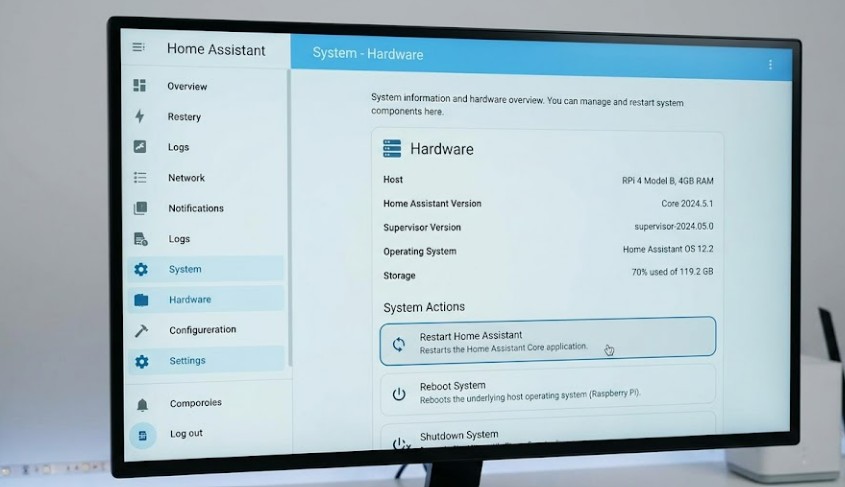
If you’re on Home Assistant OS, go to Settings > System > Hardware, or just use the Terminal & SSH add-on if you have it installed.
Image: Home Assistant Settings page showing System > Hardware section with restart options
Step 2: Back Up the Corrupted Database
Don’t skip this. Even a corrupted SQLite file can sometimes have most of its data recovered, and you want a copy before you start running commands that modify anything.
bash
cp home-assistant_v2.db home-assistant_v2.db.corrupted-backupYour database is usually in /config/ if you’re on HA OS, or wherever your config directory lives on Core/Supervised installs.
Step 3: Run an Integrity Check
This tells you how bad the damage actually is, and it’s a step a lot of people skip — they jump straight to “just delete it,” which, well, sort of works, but it’s not actually the right first move.
bash
sqlite3 home-assistant_v2.db "PRAGMA integrity_check;"If it comes back with ok, your database isn’t actually corrupted — something else is throwing that error (more on that in the Advanced section). If it lists specific page errors, you’ve got real corruption, but that doesn’t mean it’s unrecoverable.
Step 4: Attempt Recovery With .recover
Newer versions of SQLite (3.39+) have a built-in .recover command that’s genuinely good at salvaging data from a broken database. This is the step that actually saves your history, so don’t skip straight to deleting the file.
bash
sqlite3 home-assistant_v2.db ".recover" | sqlite3 home-assistant_v2_recovered.dbCheck the recovered file’s integrity, and if it looks clean, stop Home Assistant (it should still be stopped from Step 1), rename the original out of the way, and rename the recovered file into its place.
bash
mv home-assistant_v2.db home-assistant_v2.db.old
mv home-assistant_v2_recovered.db home-assistant_v2.db
If your SQLite version is older and doesn’t have .recover, you can fall back to the dump-and-reload method:
bash
sqlite3 home-assistant_v2.db ".dump" > dump.sql
sqlite3 home-assistant_v2_new.db < dump.sql
This one’s slower and less forgiving of corruption — .recover will skip over broken pages and salvage what it can, while .dump tends to choke and stop entirely the moment it hits a bad row.
Step 5: Start Home Assistant and Check Logs
Boot it back up and watch the logs closely for the first few minutes.
If recorder starts cleanly and your history graphs populate, you’re done. If you still see errors, move to the Advanced Fixes section below — don’t just keep retrying the same recovery command expecting a different result.
What Actually Worked For Me
My first instinct was to just delete the database and let Home Assistant create a fresh one, because that’s the fix that gets recommended in every forum thread ever written about this. It works, technically. It also means losing months of energy usage graphs and climate history, which I didn’t want to do if I didn’t have to.
So I tried the .dump method first because it’s the one I’d used years ago on a different SQLite project. It failed about a third of the way through with a cryptic error about a malformed row, and I sat there for a good ten minutes assuming the whole database was a lost cause.
Then I remembered — half-remembered, really, from a comment on a GitHub issue I’d skimmed weeks earlier — that newer SQLite ships with .recover, which handles broken pages way more gracefully than .dump does. I wasn’t even sure my installed SQLite version supported it. Checked with sqlite3 --version, got 3.40-something, tried it, and it pulled out almost everything. Lost maybe two days of sensor data, which I can live with.
Not a clean, methodical process. More like I got lucky that I happened to half-remember the right tool.
Advanced Fixes and Edge Cases
Integrity check passes but the error persists. This usually means the error isn’t actually database corruption — it’s a permissions problem, or the database file is locked by another process. Check ls -la on the file for ownership issues, and confirm nothing else (a backup script, a duplicate HA instance) has a lock on it.
Corruption keeps coming back. If you fix it and it happens again within a few weeks, stop treating it as a database problem and start treating it as a storage problem. Run dmesg on Linux-based installs and look for I/O errors, or check SD card health if you’re on a Pi. I’d genuinely just replace the SD card at this point — they’re cheap, and chasing repeated corruption on failing storage is a losing game.
Recorder configuration making things worse. If your recorder: config in configuration.yaml isn’t excluding noisy entities, you’re writing way more to disk than you need to. Add an exclude section for high-frequency sensors you don’t actually need long-term history for.
yaml
recorder:
  purge_keep_days: 10
  exclude:
    domains:
      - automation
    entity_globs:
      - sensor.*_signal_strength
Migration-related corruption after an update. Check Settings > System > Logs for migration errors specifically, not just generic recorder errors. If a migration died partway through, you may need to roll back to a snapshot taken before the update and let it try again with more free disk space available — low disk space during a migration is an underrated cause of this whole mess.
Prevention Tips
- Use a quality power supply and, if you’re on a Pi, consider a UPS hat — unclean shutdowns are the single biggest cause of this issue
- Move your database off the SD card entirely if you’re on HA OS with a Pi; an external SSD over USB is dramatically more reliable
- Set
purge_keep_daysto something reasonable instead of letting history grow forever - Exclude noisy entities from the recorder if you don’t need their full history
- Take regular backups — not just for this, but because a corrupted database is a lot less scary when you have a backup from yesterday
Technical Comparison Table
| Recovery Method | Works On Older SQLite? | Data Preserved | Speed |
|---|---|---|---|
.recover | No (3.39+ only) | Usually most of it | Fast |
.dump / reload | Yes | Partial — stops at first bad row | Slow |
| Delete and recreate | Yes | None | Instant |
| Restore from backup | Yes | Whatever your last backup had | Fast |
FAQ
Will I lose my history if I fix database corruption?
Not necessarily, but it depends how bad the corruption is. The .recover method usually saves most of it.
Can I just delete the database file?
Yes, and Home Assistant will recreate it on next start with no errors. You’ll lose all history though, so treat this as a last resort, not a first step.
Why does this keep happening on my Raspberry Pi specifically?
SD cards. It’s almost always SD cards. Move to an SSD if you can.
Does restoring a Home Assistant backup fix database corruption?
It can, if the backup predates the corruption. But you’ll lose anything logged between the backup and now, so it’s not a perfect fix.
Is this a Home Assistant bug?
Rarely. Most of the time it’s underlying storage or power issues, not something wrong with HA’s code itself, though the occasional bad migration doesn’t help.
Editor’s Opinion
honestly this one’s annoying because the “just delete the db” advice is everywhere online and it works but it throws away data you might actually want. the .recover trick isnt well documented anywhere obvious which is wild given how often this error comes up. if your sqlite version supports it, use it before you give up and nuke the file. also seriously, get off the sd card if you’re on a pi, that’s most of this whole problem right there.